

How to use AI conflict recommendations
Sitting at the bottom of the resolution panel is an optional second opinion. Unlike a screening suggestion, which weighs a paper on its own, a conflict recommendation reads the disagreement in front of you: both reviewers’ votes, the criteria they selected, their notes and highlights, and your project’s criteria. It never records anything — you still click Include or Exclude.
Ask for a recommendation
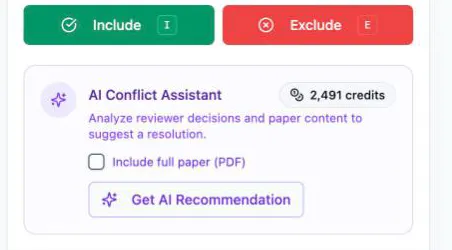
Section titled “Ask for a recommendation”Open a conflict and scroll the right panel to AI Conflict Assistant. If the paper has a PDF attached, an Include full paper (PDF) checkbox appears; leave it off and the analysis works from the title and abstract, tick it and the full text goes with the request.
Click Get AI Recommendation. The panel reads Analyzing conflict… while it runs, then replaces itself with the result.
Read what came back
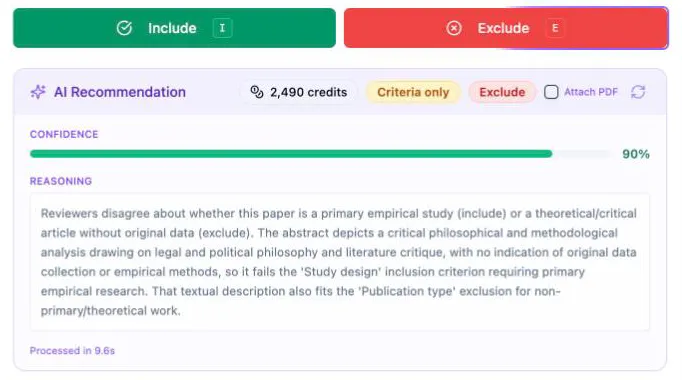
Section titled “Read what came back”The result panel is headed AI Recommendation and carries the verdict as a badge — Include in green or Exclude in red — plus:
- Confidence — a bar and a percentage, green from 80%, amber from 60%, red below.
- Reasoning — the argument for the verdict, written against your criteria and the reviewers’ positions. This is the part to read; the confidence figure can’t tell you whether the argument holds.
- A footnote with how long it took, and a Full paper marker when the PDF was included.
A Criteria only badge means the recommendation was made from your criteria text alone, with no finished screening from this project behind it — worth less than a later one, and a reason to weigh it lightly early in a review. The refresh icon regenerates the recommendation, replacing the current one; the Attach PDF checkbox beside it lets a regeneration read the full text.
Sending the PDF changes the argument rather than the layout. The same panel comes back, with a Full paper marker in the footnote and reasoning drawn from the paper’s methods and sample instead of the claims its abstract makes — which is why it’s the run worth paying for when the disagreement turns on study design or population, the two things an abstract is thinnest on. AI screening suggestions shows the same escalation on a single paper, where the badge reads Full text instead.
Decide for yourself
Section titled “Decide for yourself”Once a recommendation exists, the decision button it points at picks up a soft glow — a nudge, not a lock. Both buttons stay live and cost the same single click.
What you do next is recorded. Resolve the paper the way the recommendation suggested and its record is badged AI Accepted; go the other way and it reads AI Overridden. Neither changes the outcome, but months later — when you’re writing up how disagreements were settled — the resolution history shows exactly where a machine agreed with you and where you disagreed with it.
Where the record lands
Section titled “Where the record lands”That badge doesn’t only live on the screen you just left. A settled paper moves to the Completed tab of Conflict Management, and opening it from there gives you Paper review — a read-only audit of how the paper was screened and decided, with nothing left to click.
Its Decision audit panel leads with the outcome and how it was reached: the decision, the AI Accepted or AI Overridden badge, and a sentence naming the route — Resolved after reviewer disagreement · AI-assisted resolution (accepted). A manual resolution reads Manual resolution in the same place, and papers that never conflicted say which threshold or unanimous vote decided them.
Under it the whole trail reads in order: the vote breakdown against the threshold that applied, each reviewer’s decision and the tags they chose, a Timeline of who decided what and when, their highlights and notes, and the resolution record — who settled it, the note they left, and the votes as they stood at that moment.
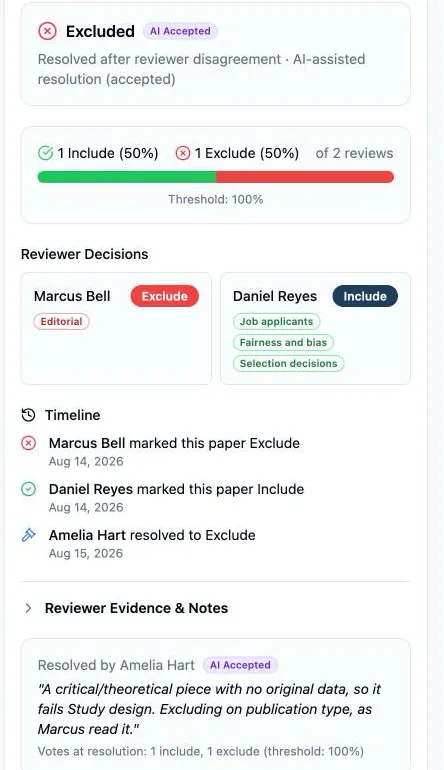
Reviewer Evidence & Notes folds away, as it is above, and opens onto the same highlights and notes the workspace showed you. This is the page to open months later when the write-up asks how disagreements were settled — and, like the queue itself, it’s Owner and Assistant only.
When it isn’t available
Section titled “When it isn’t available”The panel replaces its button with the reason:
- Not enough finished screening yet. Recommendations follow the same activation rules as AI screening suggestions — a shortfall message names how many more resolved, included or excluded papers the project’s current tier needs.
- AI switched off for your account. The Owner controls this per member; the panel says so plainly.
- The project isn’t on a paid plan. The Owner sees an upgrade card in place of the panel.
A recommendation already generated stays readable in all of these cases — turning AI off stops new runs, it doesn’t erase what’s been written. Resolved papers keep theirs too, which is what makes the AI Accepted / AI Overridden record worth having.