

How to use AI extraction
AI extraction reads the attached PDF and drafts an answer for every field in your template — each with a confidence score and the passages it drew on. It fills the form; you review it field by field and the submission stays yours to make.
What you need
Section titled “What you need”The purple AI Extraction panel sits at the top of the form in the extraction workspace. It’s an extractor’s tool — verifiers check human-reviewed values, so their view doesn’t offer it — and it needs a PDF attached to the paper (the button’s tooltip says so when there isn’t one). Runs use AI credits from the project’s plan, and the project owner can switch AI access on or off per member; if it’s off for you, the workspace says so in place of the panel.
Run it
Section titled “Run it”-
Click AI Auto-Extract in the panel.
-
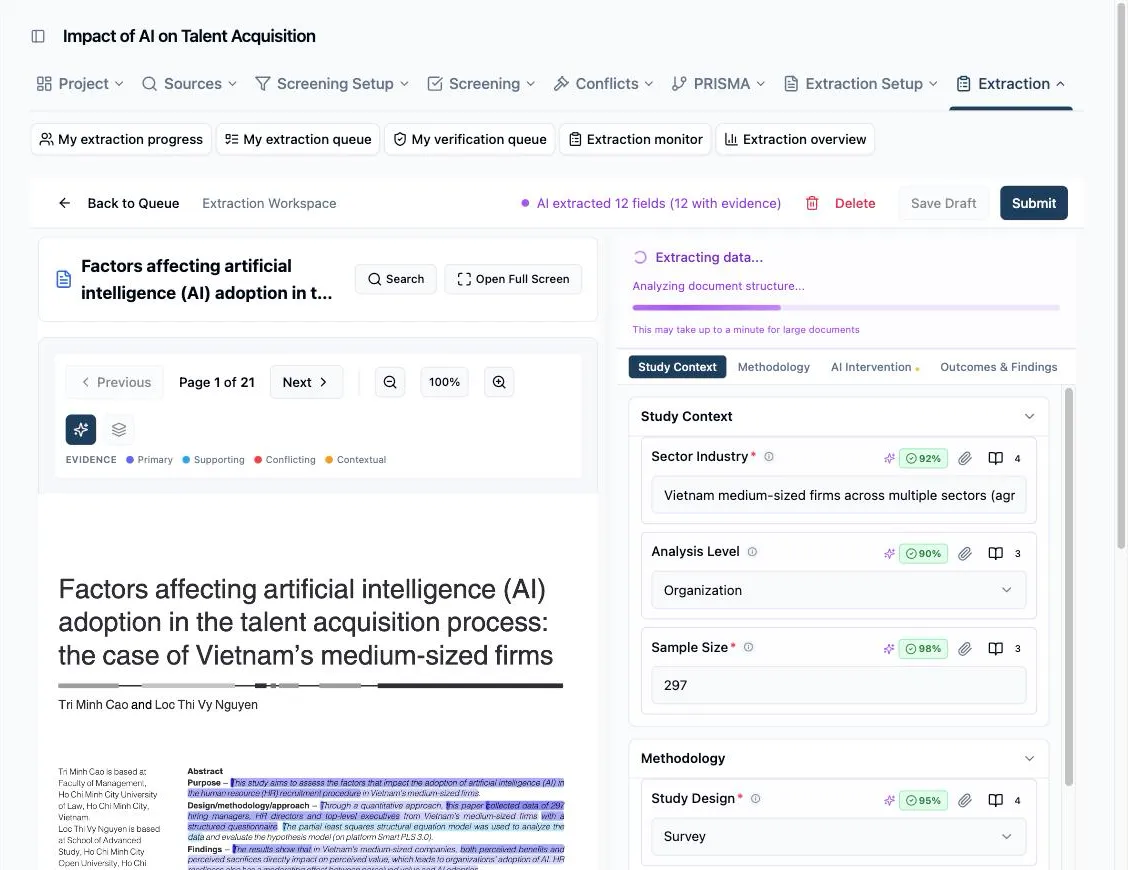
The panel narrates progress — Extracting data… through steps like Reading PDF content and Matching fields to content. Large documents can take up to a minute.
-
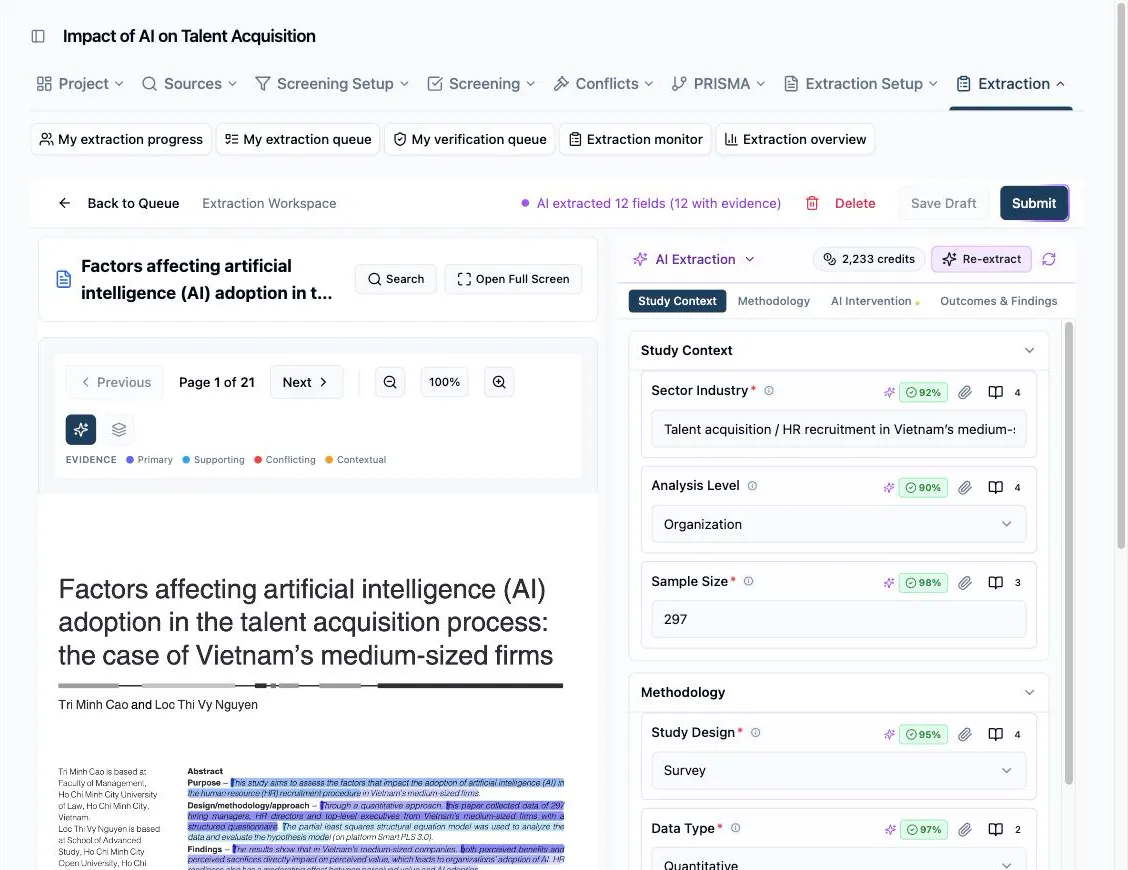
When it finishes, answers cascade into the form. Fields the AI filled are tinted purple with a sparkles mark, and each carries its confidence as a percentage badge — green when high, amber or red when it deserves scrutiny.
Review every field
Section titled “Review every field”The badges are the map for your review pass. Expand the panel header to see the legend and the run’s totals — how many answers were extracted (stated in the paper), how many inferred (the AI’s deduction rather than a quote), and how many are manual (yours). Inferred and low-confidence answers are where your attention belongs; section tabs with an amber dot contain fields still needing review.
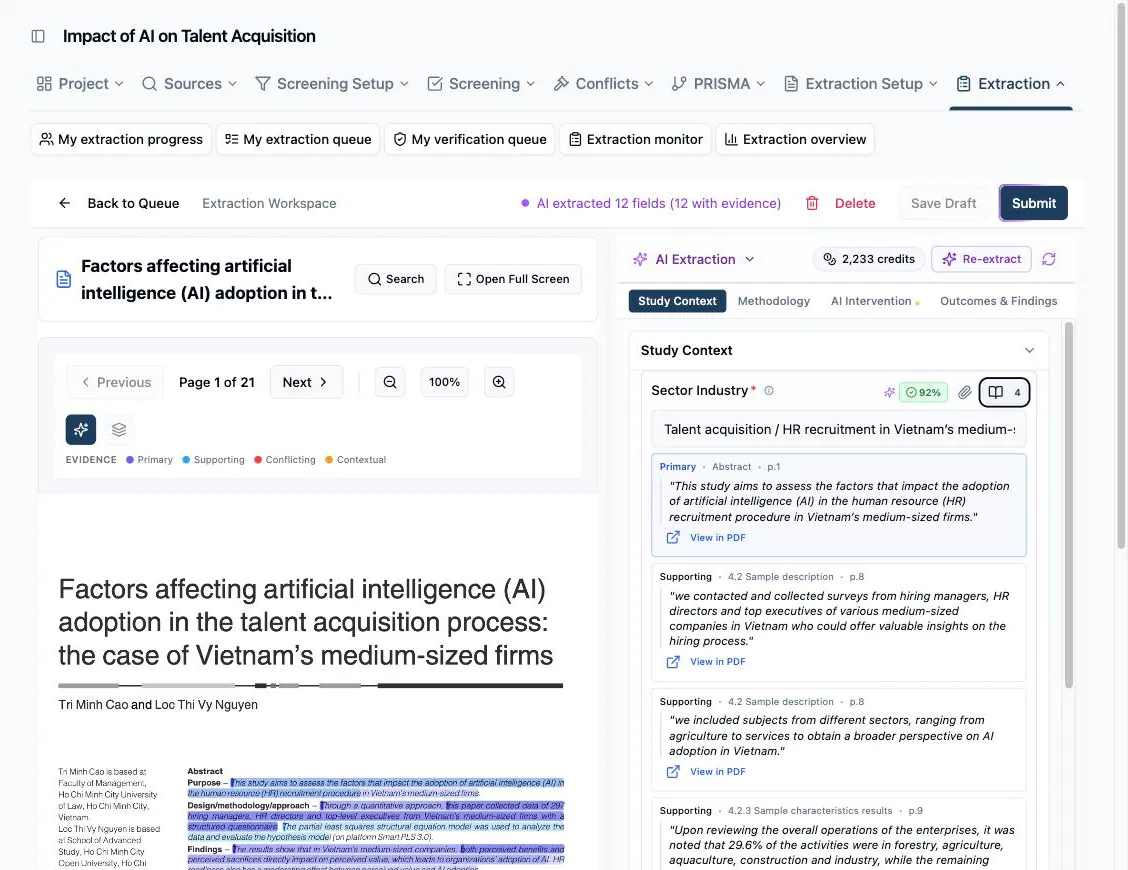
Every AI answer comes with its receipts: the book icon next to a field opens its evidence — the supporting passages, each with a View in PDF jump to the exact spot. If the paper says two different things about a field, an amber triangle flags Conflicting Information, and the evidence view shows both passages so you can decide which one is right. The Show confidence and Show evidence toggles in the panel hide either layer once you’re done with it.
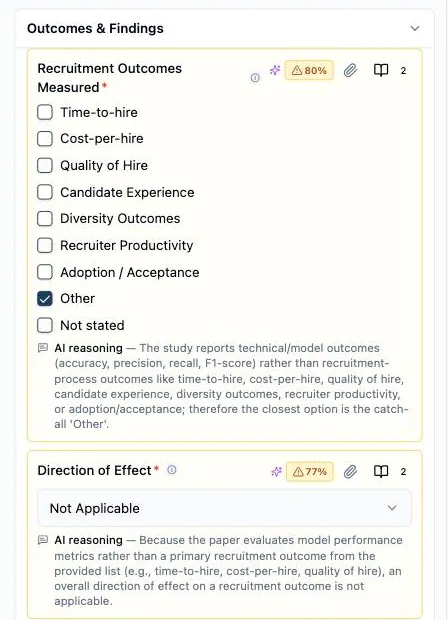
A field left blank, marked Unclear, or checked Other / Not stated shows its AI reasoning right underneath instead — the same kind of explanation, just impossible to miss.
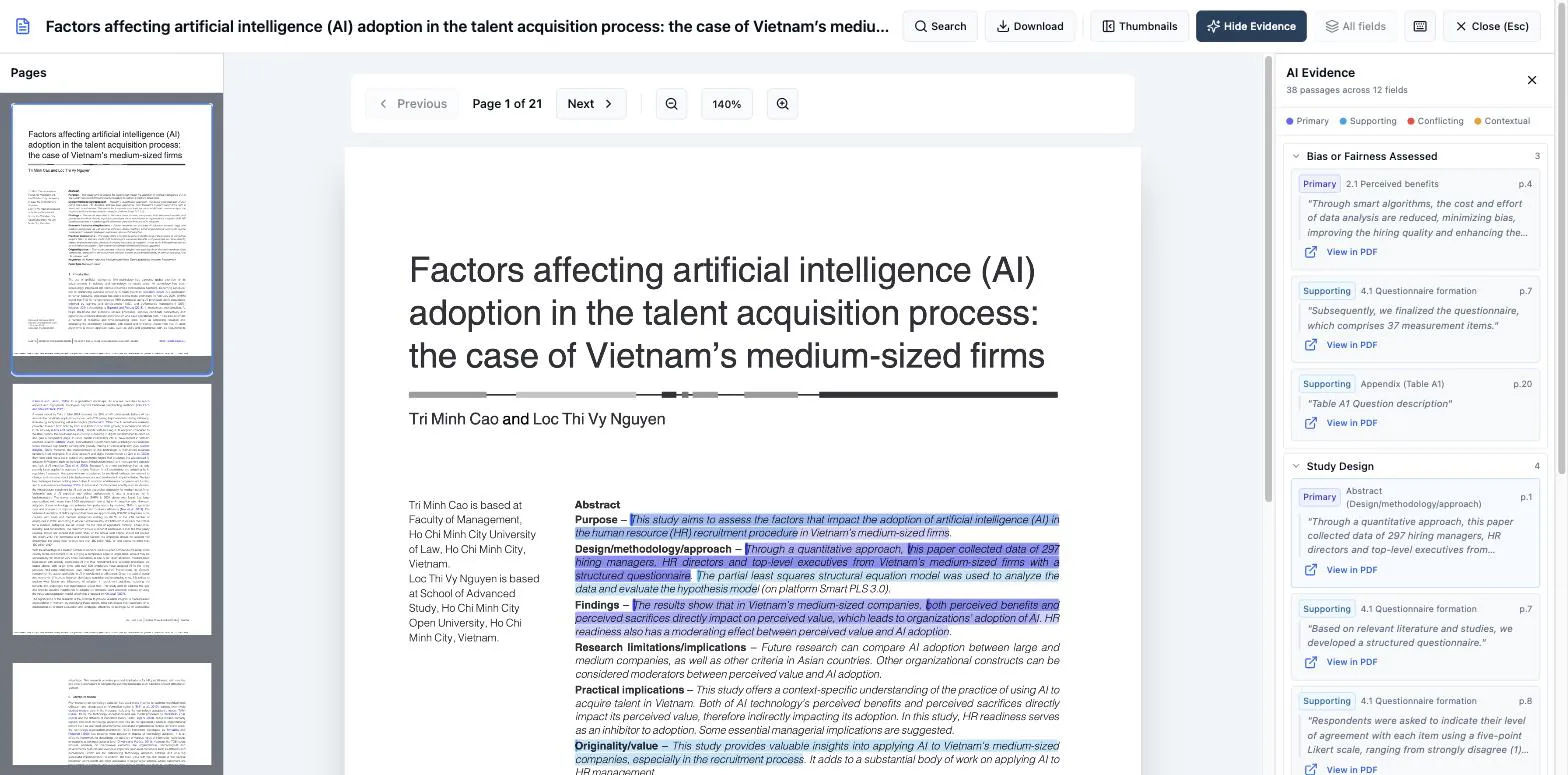
For a closer read, Open Full Screen next to the paper’s title expands the PDF to fill the window. Every AI-drafted field’s evidence is pinned in an AI Evidence panel alongside it — the same passages as the field-by-field view, grouped by field with the same Primary / Supporting / Conflicting / Contextual legend, each still carrying its own View in PDF jump — so you can work through everything the AI cited in one pass instead of opening each field’s evidence in turn.
Accept, edit, or discard
Section titled “Accept, edit, or discard”Accepting an answer takes nothing — leave it and move on. Editing one marks it with a pencil as Edited, and it stops counting as needing review: it’s your answer now. Two escape hatches cover a run gone wrong, and both replace what’s in the form — including fields you’ve edited — so run the AI first and refine after: Re-extract does a fresh run over the paper, and Reset AI results clears the run entirely, back to a blank form.
Then submit exactly as you would a hand-filled form — required fields, evidence links, notes, and Submit all work the same. Nothing is submitted on your behalf.