

How to create your first project
A project is the workspace for one systematic review: its libraries, criteria, screening decisions, extraction data, and reports all live inside it. Creating one takes under a minute — only the name is required, and every other setting (criteria, members, distribution) is configured later, from inside the project.
Create the project
Section titled “Create the project”-
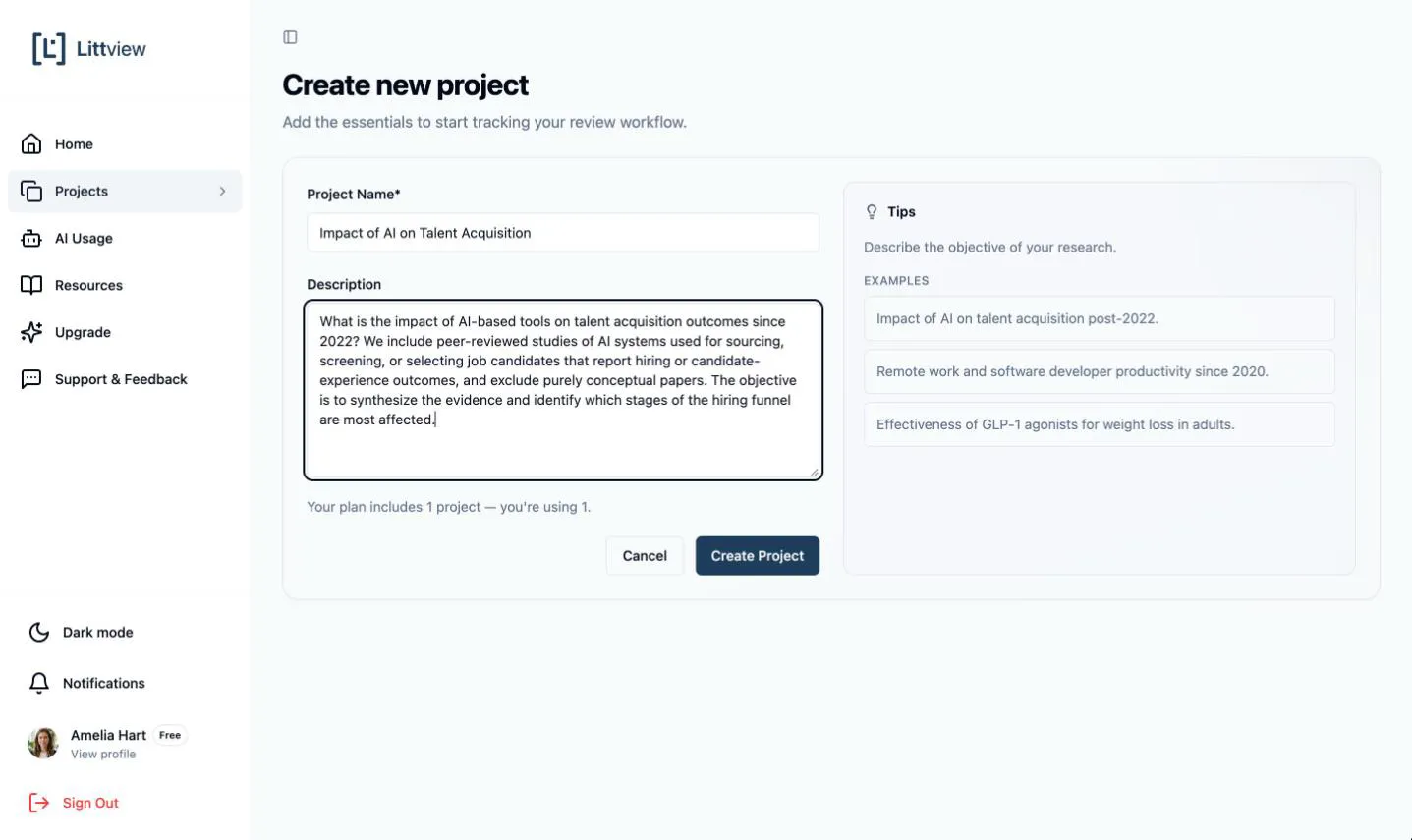
On your Projects page, click New Project. If this is the very first project on your account, the home page you see after signing in shows a Welcome to Littview card instead — its Create new project button opens the same form.
-
Enter a Project Name — the only required field. It appears at the top of every page of the project and in your projects list, so pick something you and your co-reviewers will recognize.
-
In Description, state the research question, scope, and objective of your review — the field prompts you for exactly that, and the Tips panel beside the form shows example one-liners. The description appears on the project’s card on your Projects page, so it is what everyone you invite reads first. If you prepared a protocol, this is its question restated in a sentence or two (see what to have ready before you start).
-
Click Create Project.
Where you land: the project home
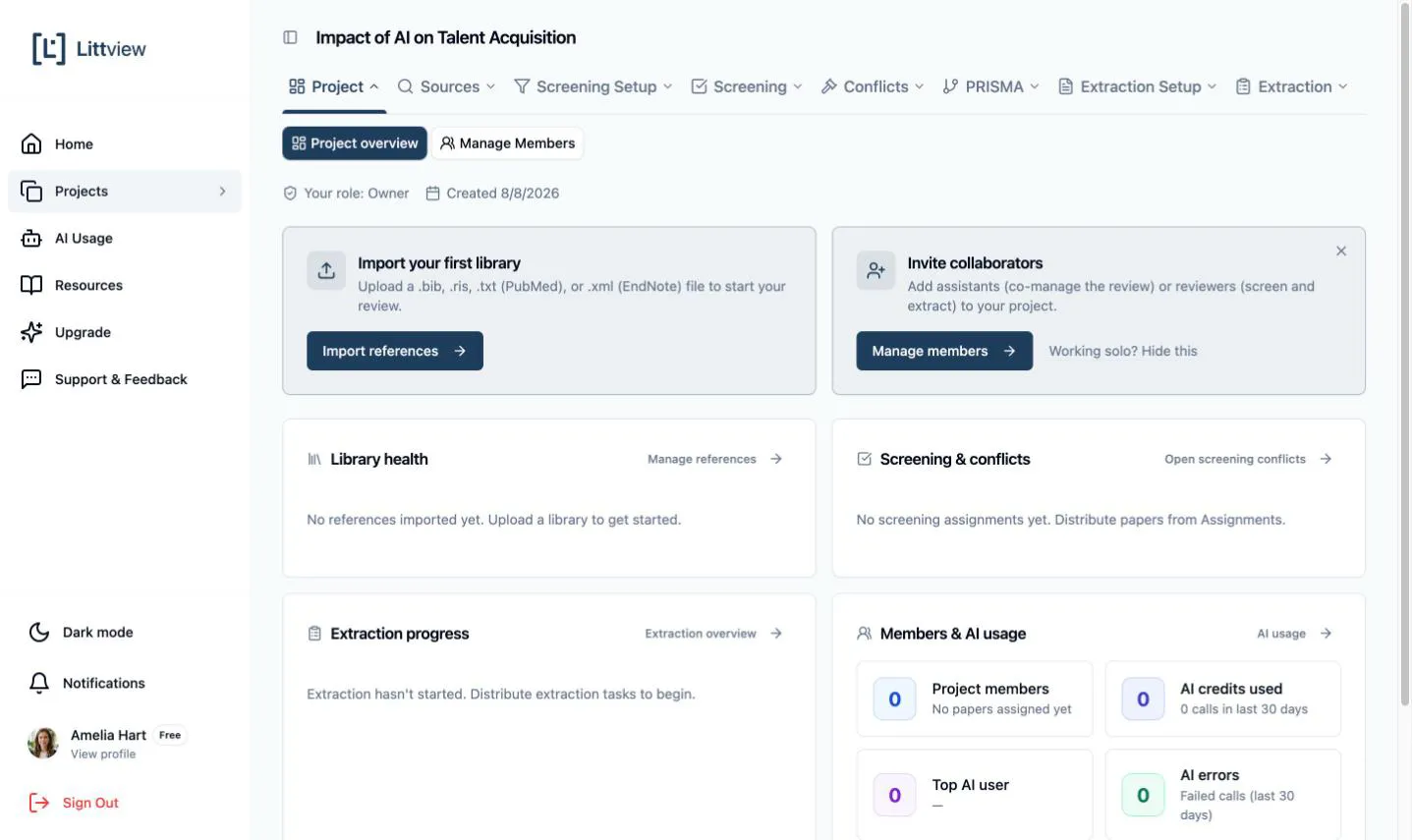
Section titled “Where you land: the project home”Creating the project makes you its Owner — the role with full control over settings, criteria, members, and distribution (roles explained here). You land on the project’s home page, which shows Your role: Owner, the creation date, and — while the project is empty — two starting points:
- Import your first library — upload a .bib, .ris, .txt (PubMed), or .xml (EndNote) file of your exported search results. Import references takes you straight to the upload page. The card disappears once your first library is in.
- Invite collaborators — add assistants (who co-manage the review) or reviewers (who screen and extract) via Manage members. The card disappears as soon as you send your first invitation — and reviewing alone is fully supported, so if that’s your plan, click Working solo? Hide this to dismiss it for good. You can invite people at any later point, including after screening has begun.
Change the name or description later
Section titled “Change the name or description later”Nothing in the review depends on the project’s name, so you can rename freely. On your Projects page, open the ⋮ menu on the project’s card and choose Edit — the Edit Project dialog lets you change the Project Name and Description, then Save Changes.
With the workspace created, the next step is bringing your search results in — start with Importing Papers.