

How to save and reuse extraction templates
If you run more than one review, you’ll want the same extraction form — or most of it — again. The template library keeps copies under your account, so a template built in one project can seed the next one without rebuilding it field by field.
Save a template to your library
Section titled “Save a template to your library”In the Template builder, click Save to Library. The Save to Template Library dialog asks for a Name and an optional Description, and states what it’s about to store — N sections, N fields will be saved as a snapshot.
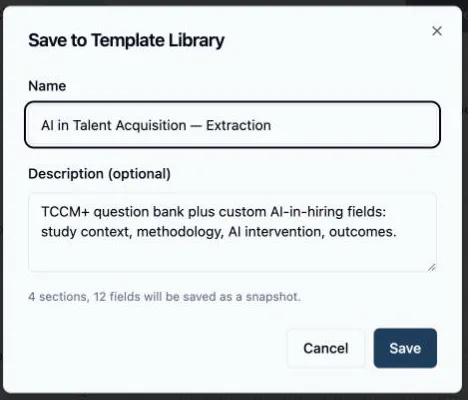
Snapshot is the operative word: the saved copy is frozen at that moment. Edits you make to the project’s template afterwards don’t touch the library copy, so you can save a clean baseline, keep tailoring the project’s form, and still have the baseline for next time.
The library belongs to your account, not to any project — templates saved here follow you across every project you own or work in.
Import a template into a project
Section titled “Import a template into a project”Click Import from Library in the Template builder to open the Template Library dialog. Each saved template lists its section and field counts; from here you can also rename one or delete it (deleting asks inline, right in the row). Click Use on a row to load that template into the current project.
Importing replaces the current template structure in the builder — it doesn’t merge. If you have unsaved changes in the builder, the dialog warns you first and asks you to confirm with Import Anyway.
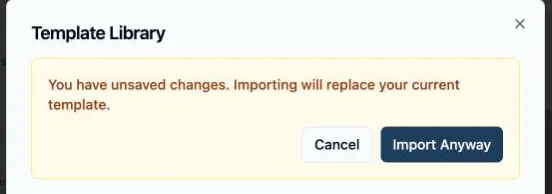
After importing, the template is a normal draft in this project: edit it, then Save and Publish as usual. The import and the library copy are independent from that point on.