

How to use AI screening suggestions
A suggestion is something you ask for, one paper at a time, from inside the Screening Workspace: a proposed Include or Exclude, the criteria behind it, a confidence figure, and the reasoning. It fills in the same criteria panel you’d fill in yourself but never records a decision — the decision stays yours. Each reviewer asks for their own; nobody screens a paper with someone else’s suggestion on screen.
Ask for a suggestion
Section titled “Ask for a suggestion”AI Suggest sits at the top right of the workspace.
-
Click AI Suggest. It reads Analyzing… while the request runs.
-
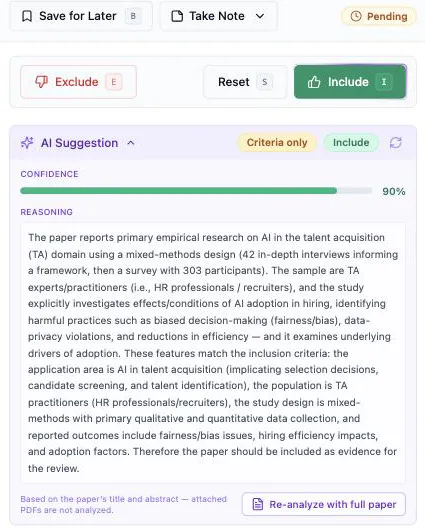
A violet AI Suggestion panel appears in the right panel, directly beneath the Exclude / Reset / Include row, and the button settles on AI Applied.
One suggestion lives on a paper at a time — the button stays on AI Applied until you regenerate it or reset the paper.
Read the suggestion
Section titled “Read the suggestion”The panel header carries the verdict as a badge — Include in green, Exclude in red — and beneath it two things worth more than the verdict: a Confidence bar (green from 80%, amber from 60%, red below that) and the Reasoning, a paragraph arguing the call against your own criteria, category by category. Read the reasoning against the abstract; that’s the check the confidence number can’t do for you.
A footnote under the reasoning names what was actually read: Based on the paper’s title and abstract — attached PDFs are not analyzed. A Criteria only badge in the header means the suggestion weighed the paper against your criteria text alone, with no finished screening from this project behind it — the state every project starts in, and the reason those suggestions are worth less than later ones. Clicking the AI Suggestion header collapses the panel when you want the paper back.
Check what it selected
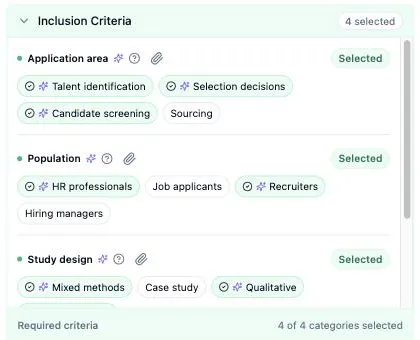
Section titled “Check what it selected”The suggestion doesn’t stay in its own panel. The categories and tags it matched are already selected in Classification Criteria — each marked with a small violet sparkle, their categories showing Selected — and the decision button it recommends pulses until you act on it.
Treat that as a draft. Click a tag to drop it, pick the ones it missed, deselect a whole category: what gets saved is whatever is selected when you click Include or Exclude, and overriding the suggestion costs nothing but the click. A sparkle only shows while a suggested tag is still selected — drop one and its sparkle goes with it — so what stays marked is where you and the AI ended up agreeing, and everything unmarked is yours.
Re-analyze with the full paper
Section titled “Re-analyze with the full paper”Suggestions read the title and abstract. When the paper has a PDF attached, the panel offers one escalation: Re-analyze with full paper.
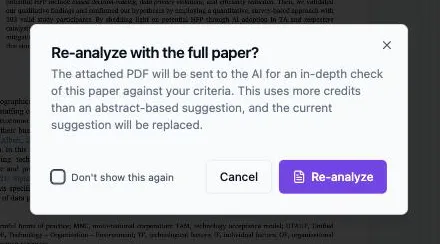
Littview confirms first, because it costs more than the abstract-based run and the current suggestion is replaced by the result. Tick Don’t show this again if you’d rather go straight through in future, then click Re-analyze.
The replacement carries a Full text badge, its footnote reads Based on the full text of the attached PDF, and the re-analyze button is gone — there’s nothing further to escalate to. If the PDF can’t be used (too large, or it won’t download), a Full text unavailable message says why and the suggestion falls back to the title and abstract.
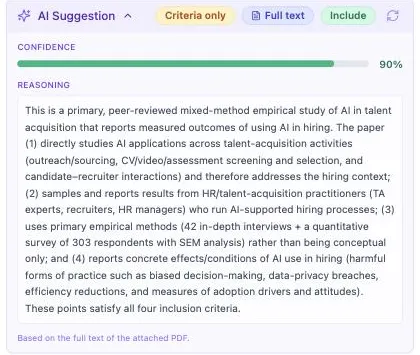
This is the one worth spending on: a borderline paper where the abstract doesn’t say whether the study is primary, or which population it actually sampled.
Replace or clear a suggestion
Section titled “Replace or clear a suggestion”The refresh icon in the panel header — Regenerate AI suggestion — throws the current suggestion away and asks again, replacing the criteria it had selected with the new run’s. Useful after you’ve edited your criteria, or when the reasoning reads like it answered a different paper.
Reset (S) clears the paper entirely — decision, selections, linked evidence highlights, and the suggestion with them — and AI Suggest becomes available again.
Next: How to track your screening progress — your own queue: decided papers against the ones you parked.