

How to resolve screening conflicts
A conflict is a paper whose reviewers finished and disagreed. Resolving it means reading what each of them decided and why, then recording the call that goes into the review. Everything you need for that is on one screen, and the papers queue up so you can work through them without going back to a list each time.
Open the queue
Section titled “Open the queue”Sidebar → Conflicts → Resolve conflicts opens Conflict Management on the Conflicts tab. If there’s anything waiting, a card at the top says how many and offers Start Resolving, which takes you straight into the first one.
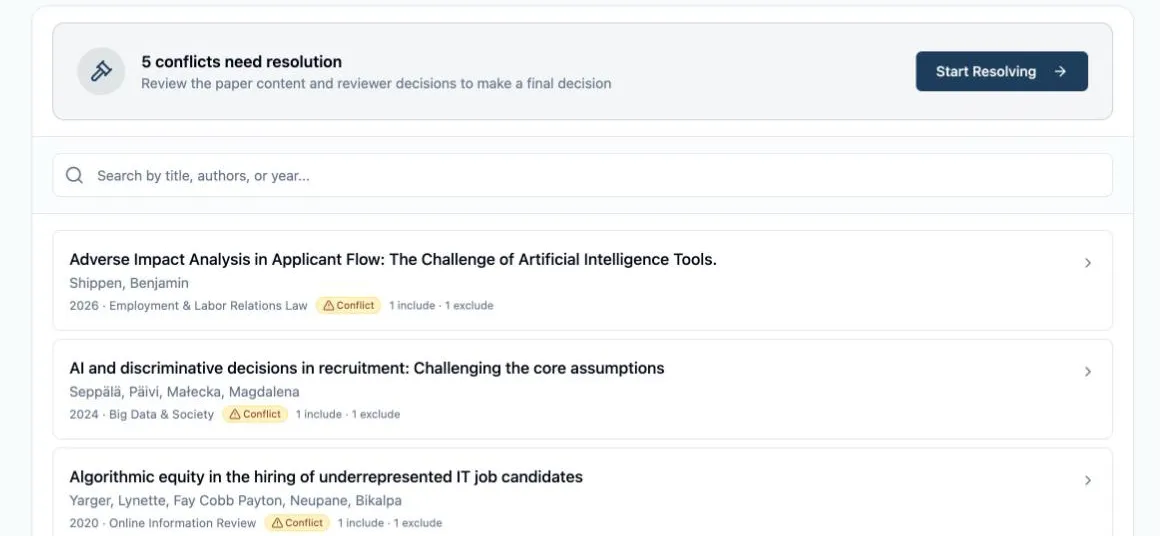
Every row carries the paper’s title, authors, year and journal, its status badge, and the vote split as 2 include · 1 exclude, so you can see the shape of each disagreement before opening it. Search filters by title, authors or year, and the list pages rather than scrolling forever.
What a click does depends on the row’s status: a Conflict opens the resolution workspace, a Pending paper opens a side panel showing how far its reviews have got, and a Completed paper opens its read-only review — the same record, with nothing left to decide.
Read the disagreement
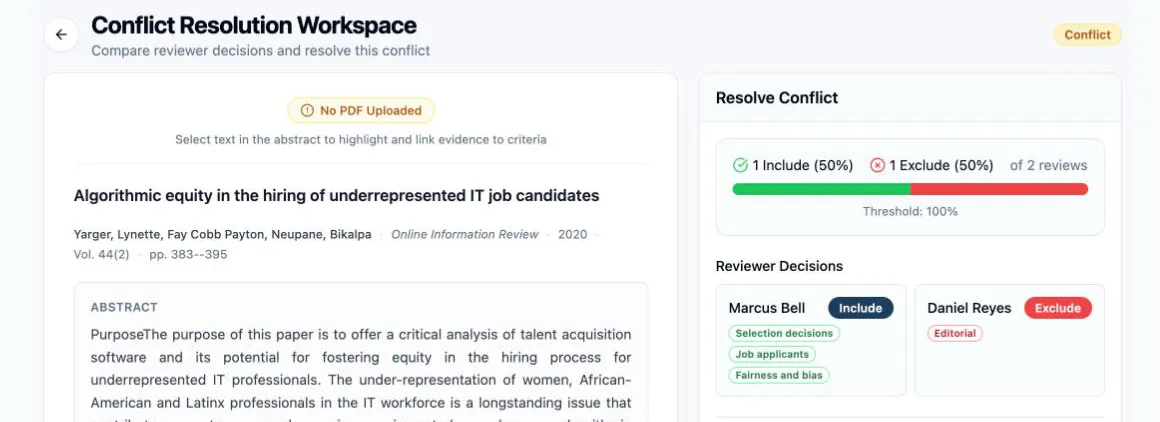
Section titled “Read the disagreement”The Conflict Resolution Workspace splits in two, with a divider you can drag. On the left is the paper — the full PDF viewer when one is attached, otherwise the title, metadata and abstract. On the right, under Resolve Conflict, is everything the reviewers left behind.
The top of that panel is the vote breakdown: how many voted Include and how many Exclude, each as a count and a percentage of the completed reviews, drawn as a green/red bar with a marker at your Threshold so you can see exactly how far the paper fell short of an automatic decision.
Under it, Reviewer Decisions gives each reviewer a card: their name, an Include or Exclude badge, and the criteria tags they selected — green for inclusion, red for exclusion. This is the part worth slowing down on. Two reviewers who disagree while pointing at the same category are reading that category differently, and the fix is the criterion’s wording, not this paper.
Check the evidence behind each vote
Section titled “Check the evidence behind each vote”Reviewer Evidence & Notes expands to show what each reviewer actually marked on the paper. A pill per reviewer switches between them; pick one and you get their highlights — the quoted passage, the page it’s on (or Abstract), and the criterion it was linked to — followed by any screening notes they wrote.
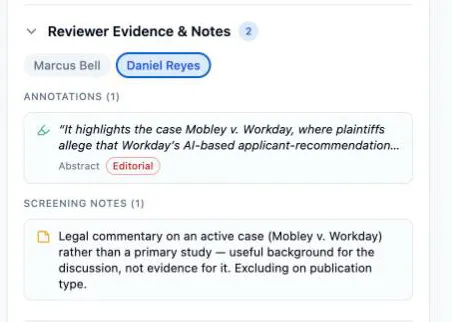
This is the difference between resolving a conflict and guessing at one. A reviewer who excluded a paper on Publication type and highlighted the sentence where the authors call it a review has made your decision for you.
Record the decision
Section titled “Record the decision”-
Optionally write a Resolution note — a sentence on why you went the way you did. It stays with the paper.
-
Click Include (I) or Exclude (E). The decision saves immediately and the paper’s badge becomes Resolved: Included or Resolved: Excluded.
-
Click Next Conflict to move to the next one. The footer counts N of M conflicts resolved as you go, and once the last one is settled the button becomes All Resolved.
After a resolution
Section titled “After a resolution”The paper moves to the Completed tab, where the Resolved filter separates the ones you settled from the auto-decided ones. Its record keeps the audit trail: who resolved it and when, the note if you left one, and the votes as they stood at that moment with the threshold that applied — so a resolution made under a 67% threshold still reads correctly after you’ve changed it.
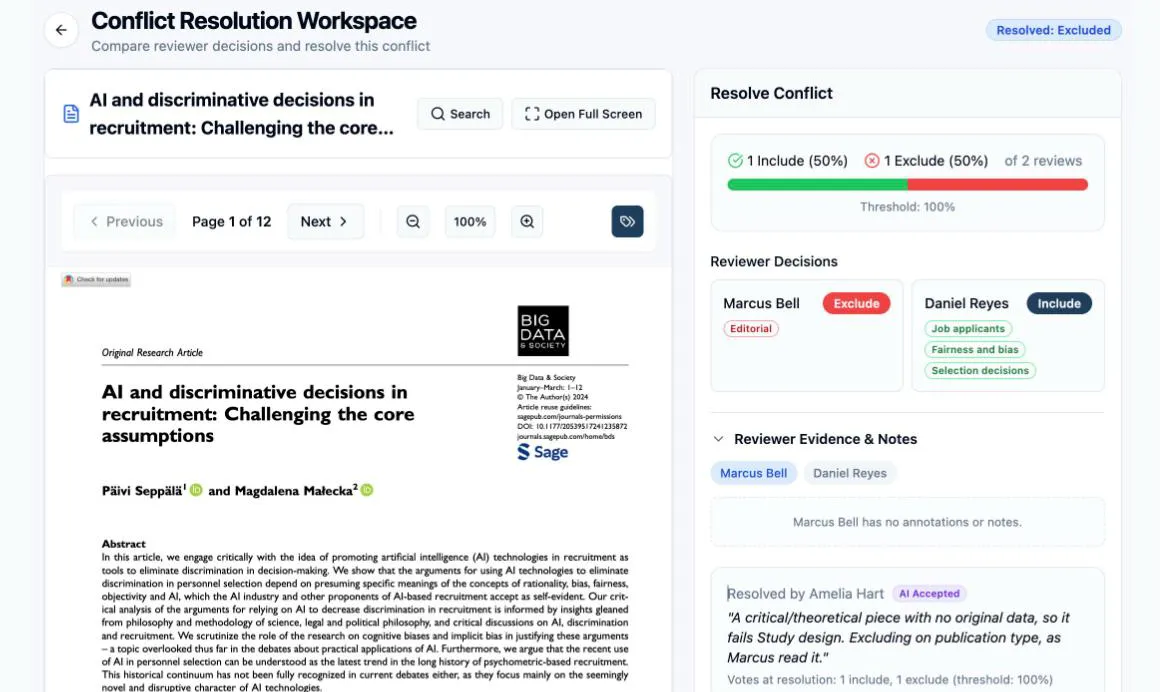
Opening that paper from the Completed tab gives you the same trail as a full page — Paper review, a read-only audit that leads with the outcome and how it was reached, then the votes, the reviewers’ tags, a timeline, their evidence, and the resolution record. How to use AI conflict recommendations walks through it.
From there the paper counts as included or excluded like any other, and flows into the PRISMA pages and diagram with no separate bookkeeping.
Next: How to use AI conflict recommendations — an optional second opinion on the disagreement in front of you.