

How to archive a project
Archiving freezes a finished review: the project stays fully readable for every member, but nothing in it can be changed anymore. It is the right ending for a systematic review — the screening decisions, the criteria they cite, the PDF highlights behind them, and the extracted data all stay intact and auditable, which deleting would destroy (and which is why Littview has no delete). Archiving is reversible at any time, and only the project’s Owner can do it.
Archive the project
Section titled “Archive the project”-
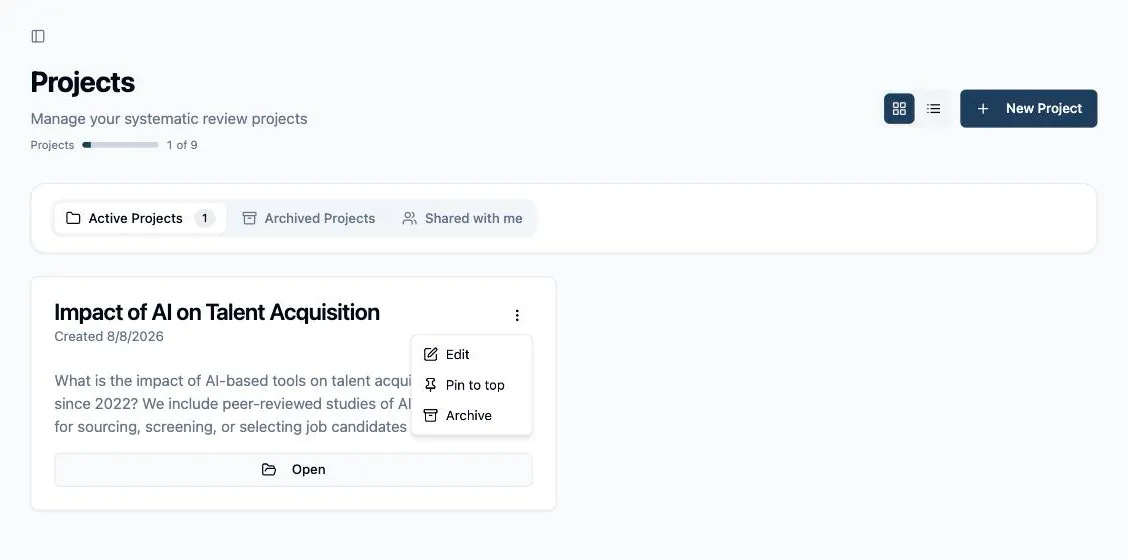
On your Projects page, open the ⋮ menu on the project’s card. (The menu offers Archive only on projects you own — projects shared with you don’t have it.)
-
Click Archive. There is no confirmation step — the project is archived immediately, with a Project Archived toast — because the action changes nothing about your data and can be undone just as quickly.
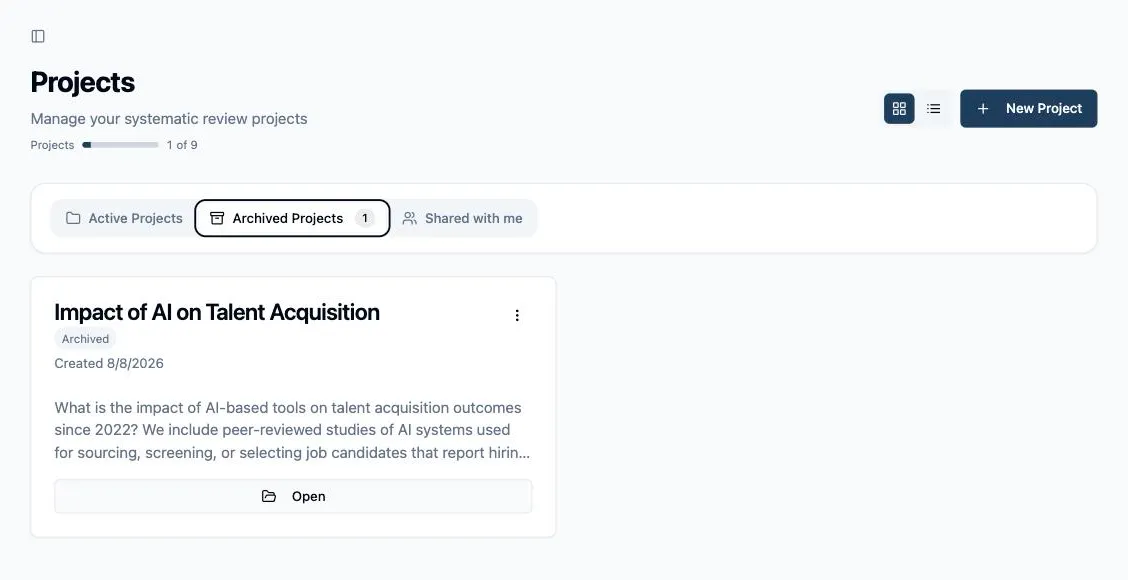
The project moves from Active Projects to the Archived Projects tab, marked with an Archived badge.
What archived means for members
Section titled “What archived means for members”Everyone keeps their read access exactly as their role defines it: members can open the project, revisit any paper’s decisions and annotations, browse the PRISMA pages, and export the Evidence Table. What disappears is the ability to write — screening and extraction controls are disabled, criteria and distribution can’t be edited, member management is switched off, and an Archived badge appears in the project’s pages so nobody wonders why. Nothing needs to be announced to the group: reviewers simply find their queues read-only.
Unarchive to pick up where you left off
Section titled “Unarchive to pick up where you left off”The same menu on the Archived Projects tab shows Unarchive. Click it and the project returns to Active Projects with every control re-enabled — assignments, queues, and settings resume exactly as they were, because archiving never altered them. A typical reason to come back: a revise-and-resubmit asking for an updated search, screened against the same criteria.