

How to review your excluded papers
Excluded Papers is the record of every paper your review turned away during screening, each one carrying the exclusion criteria the reviewers selected when they made the call. PRISMA asks you to report why papers were excluded — this page is where that answer already exists, written down at decision time rather than reconstructed afterwards.
Open the page
Section titled “Open the page”In the project sidebar under PRISMA, click Excluded papers. The page opens on its Papers List tab, covered here; the Analytics tab totals the same record and has its own guide.
A paper reaches this list only when its exclusion is final: every reviewer assigned to it voted to exclude, the vote cleared the project’s threshold, or the disagreement went to conflict resolution and was settled as an exclusion. The reasons attached to each paper are the exclusion categories those reviewers selected in the screening workspace as they decided — so what you report later is what was actually recorded, not a best guess.
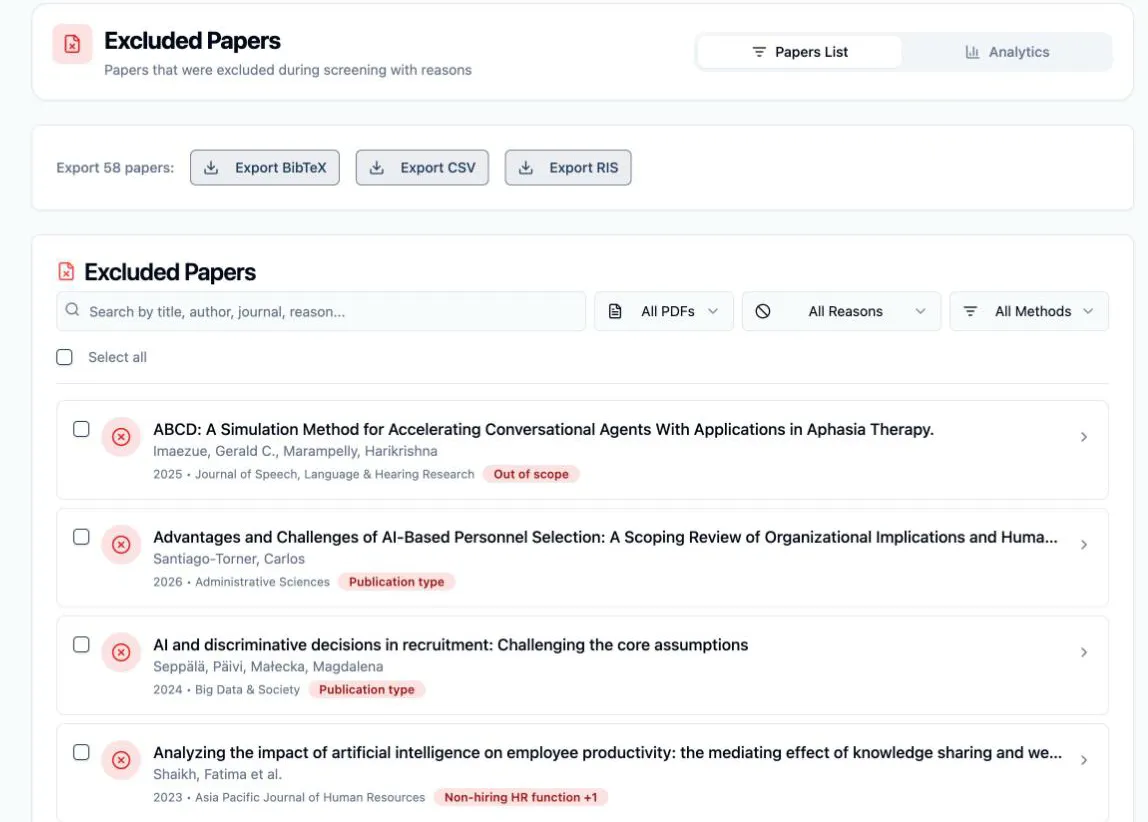
Find a paper
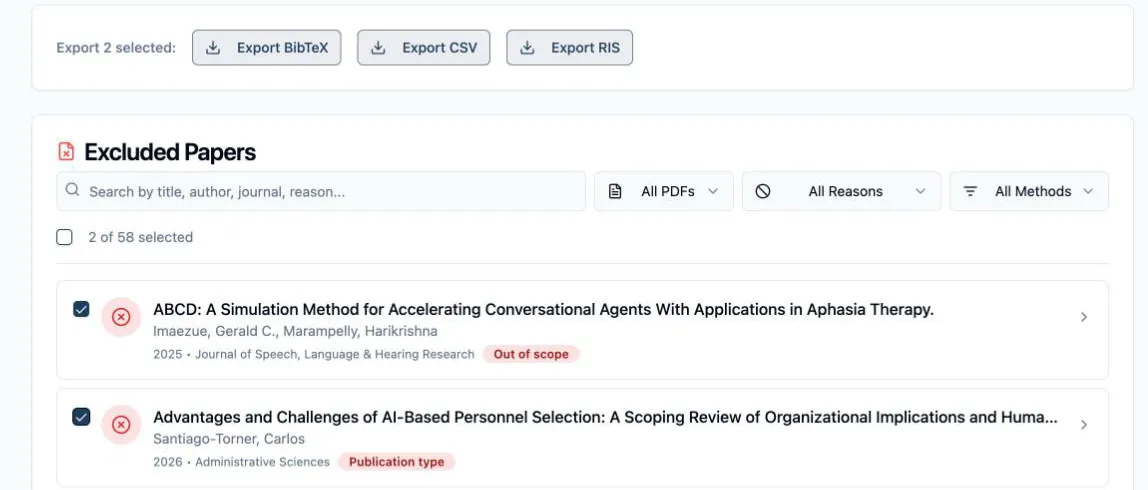
Section titled “Find a paper”The search box (Search by title, author, journal, reason…) matches titles, authors, journals, DOIs, and the exclusion reasons themselves. Three dropdowns narrow the list further:
- All PDFs — switch to With PDF or Missing PDF to split the list by whether a full text is attached.
- All Reasons — one entry per exclusion criterion actually used in this project. Pick one to isolate every paper that criterion removed — the quickest way to sanity-check how a single reason was applied.
- All Methods — filter by how the exclusion was reached: Unanimous, Auto-Excluded (a majority vote cleared the threshold), or Resolved (settled by hand in the conflict workspace).
A Clear button appears while filters are active and resets them in one click. Each row shows the paper’s title, authors, year, and journal, plus a red badge with its first exclusion reason — and a +N when it carries more. Long lists paginate; Show sets 10, 25, 50, or 100 per page.
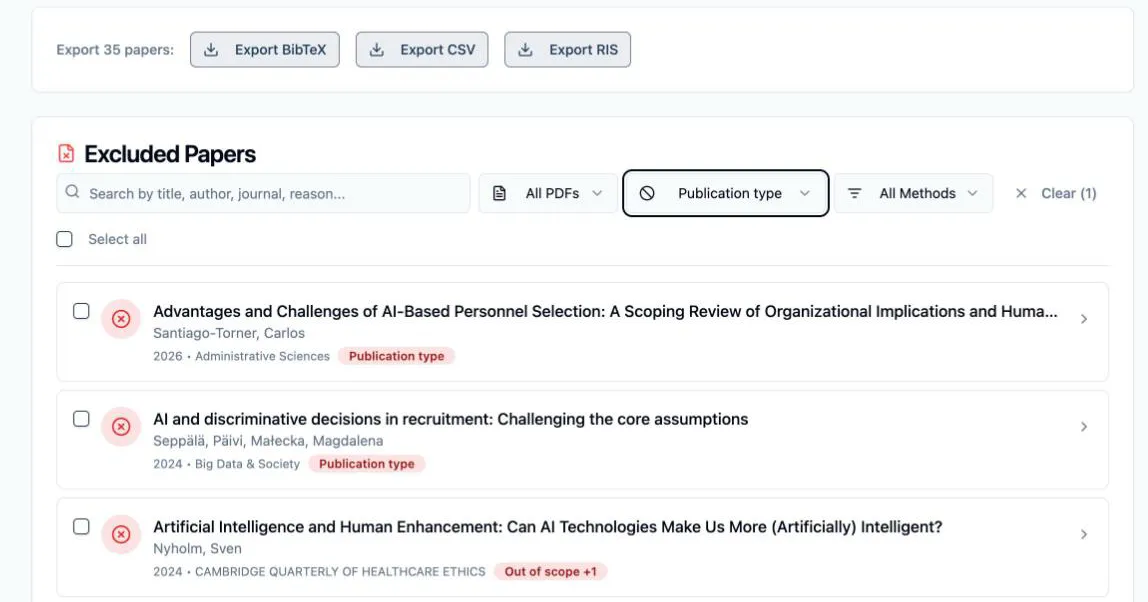
Read one paper’s record
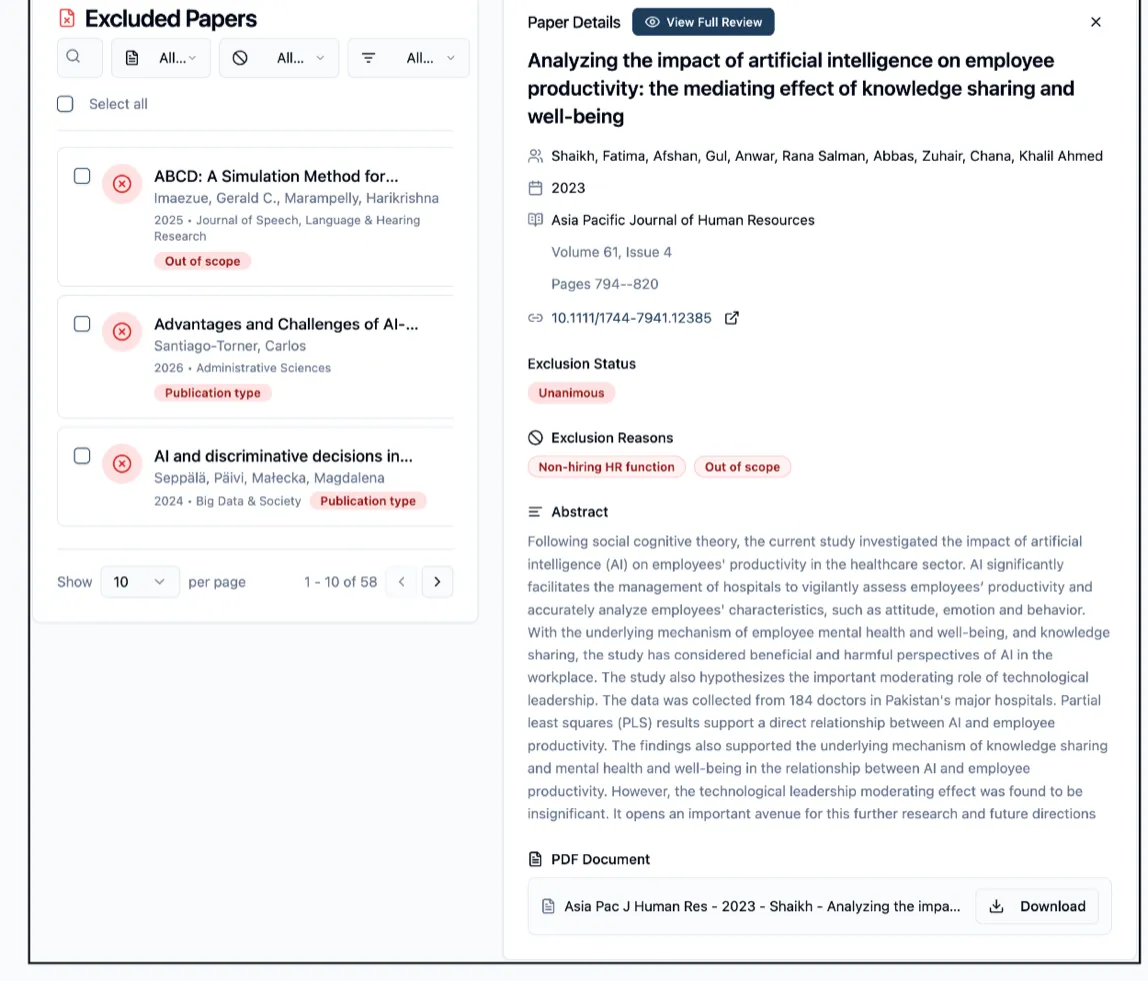
Section titled “Read one paper’s record”Click any row and the Paper Details panel opens beside the list:
- Exclusion Status — how the call was made, as a badge: Unanimous, Majority vote, or Manual resolution.
- Exclusion Reasons — every exclusion category selected by the reviewers who excluded it, each as its own badge.
- The full reference — authors, year, journal, volume and pages, the DOI as a clickable link — plus the Abstract.
- PDF Document — one file row with the attached file’s name and a Download button; or, when nothing is attached, a dashed panel badged No PDF attached offering Upload PDF and lookup links (OpenAlex and Scholar, plus Publisher and DOI where the record carries them). Papers excluded on the abstract usually never got a full text, so this is the common state here — attach one only if you need it on file.
Read the full review behind an exclusion
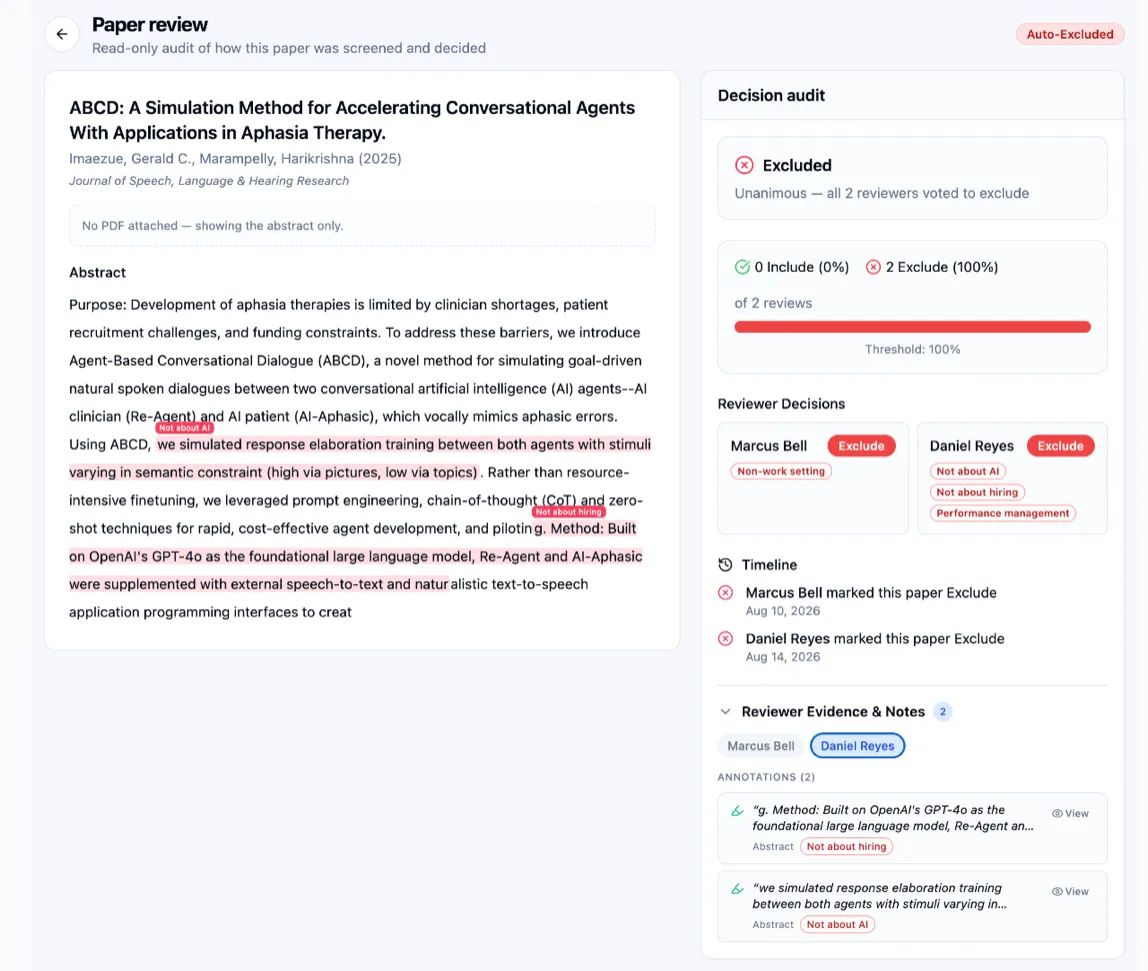
Section titled “Read the full review behind an exclusion”The panel answers what and why. For who, when, and on what evidence, click View Full Review in the Paper Details header: it opens Paper review, the read-only audit of how this paper was screened. The badge at the top right states the outcome as recorded — Auto-Excluded, or Resolved: Excluded for a paper settled in the conflict workspace.
Under Decision audit, on the right, the trail runs:
- The outcome — Excluded, with the sentence behind it: Unanimous — all 2 reviewers voted to exclude, or the threshold the vote met.
- The vote bar — includes against excludes as counts and percentages, with a marker at the project’s agreement threshold.
- Reviewer Decisions — one card per reviewer with their Exclude badge and the tags they ticked beneath each criterion (a criterion selected without tags shows its own name instead). The paper’s Exclusion Reasons badges are the criteria; these cards are the level below them, which is where a shared reason and a split one become visible — two reviewers can both land on Out of scope and mean different things by it.
- Timeline — each decision with its date, in order.
- Reviewer Evidence & Notes — pick a reviewer to read their highlights and screening notes, or see has no annotations or notes when the call needed none.
The left side shows the paper the reviewers judged. With a full text attached it is the PDF, their highlights drawn over it; without one, the abstract under a No PDF attached — showing the abstract only. notice, highlights included.
Export the list, reasons included
Section titled “Export the list, reasons included”The export bar above the list offers Export BibTeX, Export CSV, and Export RIS. The label tells you the scope before you click: Export N papers exports everything currently matching your filters, and it flips to Export N selected once you tick checkboxes — use Select all to grab the whole filtered set at once.
The exclusion record travels with the references. The CSV carries Exclusion Method and Exclusion Reasons columns alongside the bibliographic fields; the BibTeX and RIS files carry each paper’s reasons in a note field (Excluded: ...). Files download as excluded_papers.bib, excluded_papers.csv, or excluded_papers.ris.
Next: How to read your excluded-paper analytics — which of these reasons did the most work across the review.