

How to review and resolve duplicates
Deduplication lives on the Duplicate Detection tab. Open your project, go to Libraries and references under Sources, and select Duplicate Detection. You’ll run detection once, then work through what it found — either group by group, or in bulk for the obvious copies.
Run detection
Section titled “Run detection”-
Check the counts along the top of the tab: Libraries, Total References, Valid References, and two Duplicates figures — one pending review, one confirmed. Before your first run, both duplicate counts are zero.
-
In the Duplicate Detection card, click Detect Duplicates.
-
The button changes to Detecting… and a panel appears with an elapsed timer. Detection runs on the server, so you can leave the page or close the tab — it finishes either way.
-
When it’s done, a summary tells you what it found: Found N duplicate group(s) across N references. The button now reads Run Again.
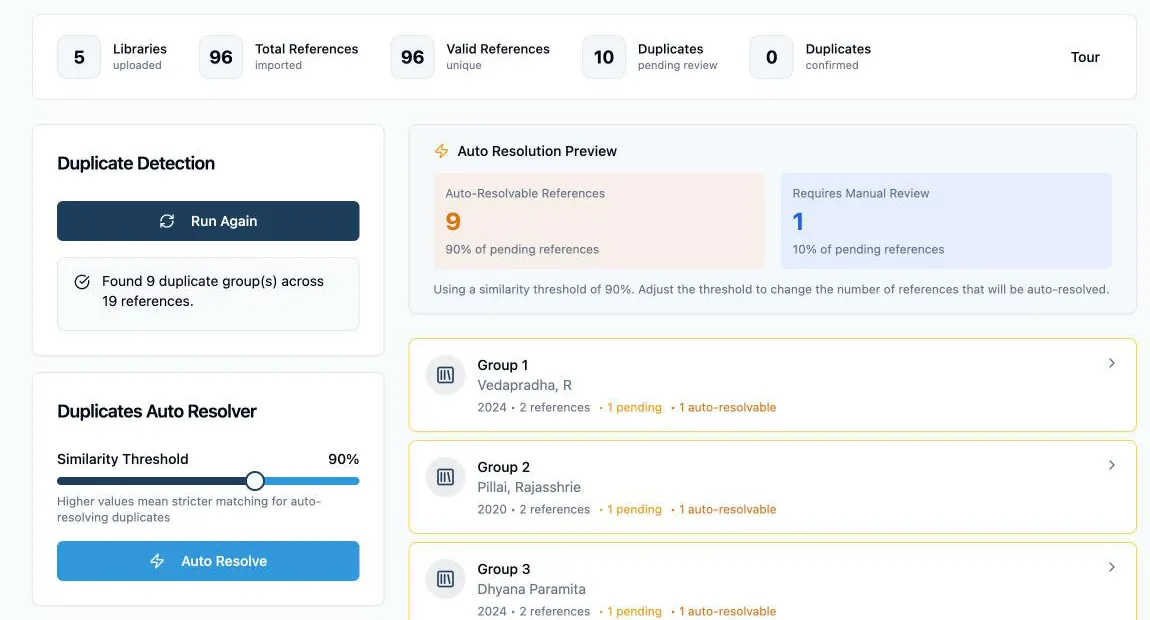
If nothing is found, the panel reads No duplicate references and you can move straight to distributing papers. Run detection again any time you import more references; groups you’ve already resolved are preserved.
Work through a group
Section titled “Work through a group”The group list fills the right of the tab. Each row shows the group number, the first author and year of the record being kept, how many references are in the group, and how many are still pending. Click a row to open it.
Inside, the records sit one above the other with their authors, title, year, abstract, and similarity percentage, so you can compare them without leaving the page. Every record except the current Primary carries three actions:
- Set as primary — keep this copy instead. The badge moves here and the previous Primary is returned to pending, so there’s always exactly one.
- Mark as duplicate — confirm this is a copy of the Primary. It drops out of the working reference list.
- Not a duplicate — this is a genuinely different paper. It stays in your review as its own reference.

Back to groups returns you to the list. Nothing needs saving — each action is recorded as you click it, and you can revisit a group and change your mind at any point.
Two things make longer lists manageable: the Show Pending Only switch hides groups you’ve already finished, and both the group list and the records inside a group page in blocks of 5, 10, 25, or 50.
Resolve the clear cases in bulk
Section titled “Resolve the clear cases in bulk”Most groups are not judgement calls — the same paper from two databases, matching on every field. Duplicates Auto Resolver clears those so your attention goes to the genuinely ambiguous ones.
Set the Similarity Threshold slider (70–100%, starting at 90) and click Auto Resolve. Every pending record scoring at or above the threshold is marked as a duplicate, and the Primary of each group is kept.
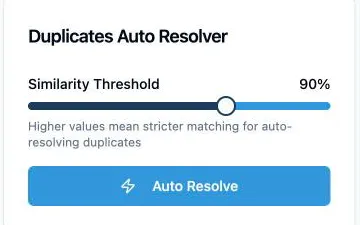
Before you commit, the Auto Resolution Preview card at the top of the group list shows exactly what the current threshold would do — how many records are Auto-Resolvable and how many would still require manual review — and each record in the groups gets an Auto-Resolvable or Needs Review badge. Move the slider and the split updates. Raising it is more cautious: fewer records resolved automatically, more left for you.
Auto Resolve only ever touches records still marked Pending Review. Anything you’ve already decided — a Primary you chose, a Not a duplicate you confirmed — is left untouched, so running it after doing some manual work is safe.
Confirm what’s left
Section titled “Confirm what’s left”When the pending count reaches zero, deduplication is done. Two places to verify:
- The References tab now lists only your deduplicated set — confirmed duplicates are no longer in it.
- The Duplicate References tab lists exactly what you removed, with a count on the tab itself. Nothing was deleted, so you can check any decision later.
Valid References in the counts row is the number you carry into screening, and it’s the figure your PRISMA diagram reports as records remaining after duplicates were removed.
With one record per paper, you’re ready to distribute papers to reviewers.