How to distribute extraction work
Distribution assigns every included paper to the people who will extract it. You choose who takes part; Littview splits the papers evenly and — with two or more extractors — gives every paper an independent verifier as well.
Before you distribute
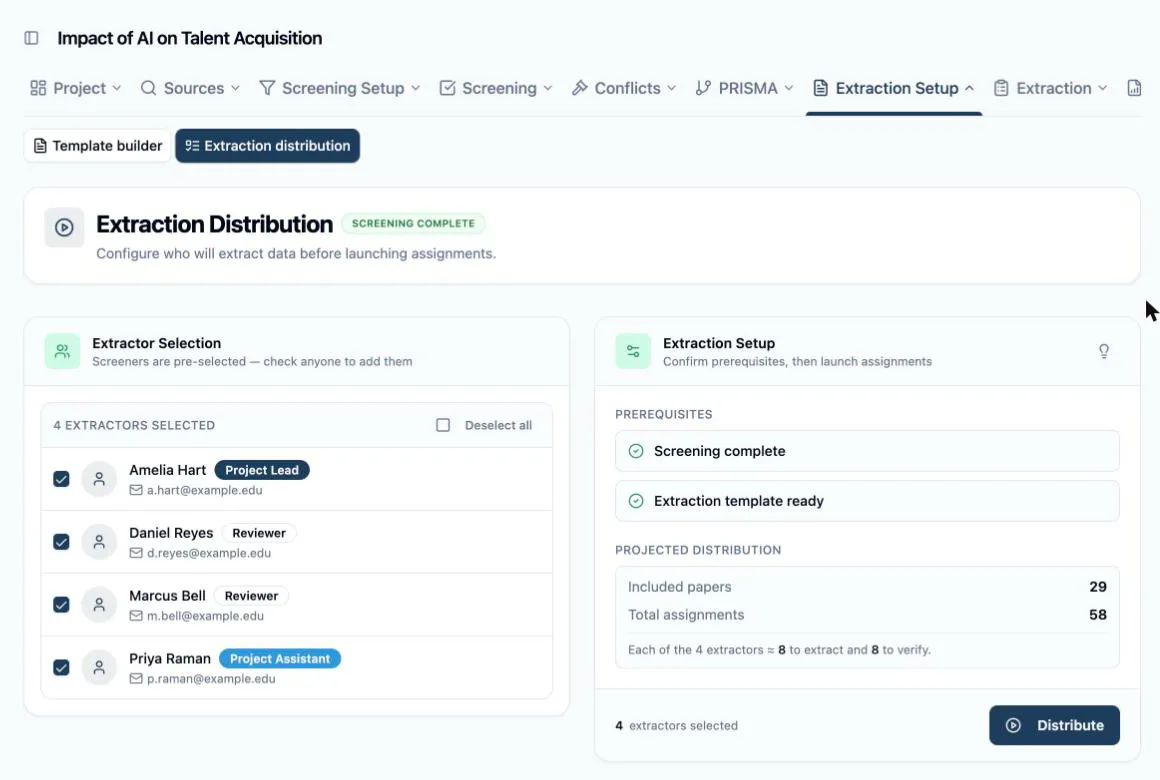
Section titled “Before you distribute”Sidebar → Extraction Setup → Extraction distribution. The Extraction Setup card lists the two prerequisites and their live status:
- Screening complete — every paper decided and every conflict resolved. Until then the card says what’s left (Finalize decisions and resolve conflicts first) and Distribute stays disabled. This rule is enforced, not advisory: extraction can’t start on a half-screened set, because the included list would still be moving under it.
- Extraction template ready — a template exists (a Create shortcut appears if not). Note that extractors can only open the form once the template is published, so publish before — or right after — distributing.
Distribution is run by the project owner or an assistant; reviewers see the resulting assignment overview read-only.
Choose the extractors
Section titled “Choose the extractors”The Extractor Selection card pre-selects everyone who screened — they know the corpus, so they’re the default extraction roster. Check or uncheck anyone, and expand Add reviewers who didn’t screen to pull in members who joined after screening.
The count you land on decides the shape of the whole phase, as the Distribution logic note on the page spells out: with one extractor, each paper is assigned once, with no verification; with two or more, every paper gets one extractor and one verifier. What each of those two actually does is the next section.
The Projected distribution box does the arithmetic live as you select: the included-paper count, the total assignments that will be created, and the per-person split — Each of the N extractors ≈ X to extract and Y to verify.
Who does what: extractor and verifier
Section titled “Who does what: extractor and verifier”With two or more extractors, every included paper carries two assignments — one extractor and one verifier — and they are always two different people. Nobody verifies their own extraction.
The extractor fills the form. They open the paper from My Extraction Queue, answer the template’s fields, and can save a draft and come back to it. Submitting hands the paper on — their own queue marks it Completed while the monitor files it under Awaiting Validation — and any note or 🚩 flag they left travels with it.
The verifier checks that work — they don’t redo it. Their row for the paper stays locked as Awaiting extraction until the extractor submits, so nobody lands on an empty form. When it does open, the form arrives already filled with the extractor’s answers rather than blank, the extractor’s note sits read-only at the top, and the extractor’s PDF highlights show alongside the fields. The verifier corrects whatever is wrong: every field they change is tagged Modified, and Confirm Verification lists each one as before → after, with an optional notes box, before it commits. Changing nothing is a valid outcome — the dialog says so, and records every field as agreed.
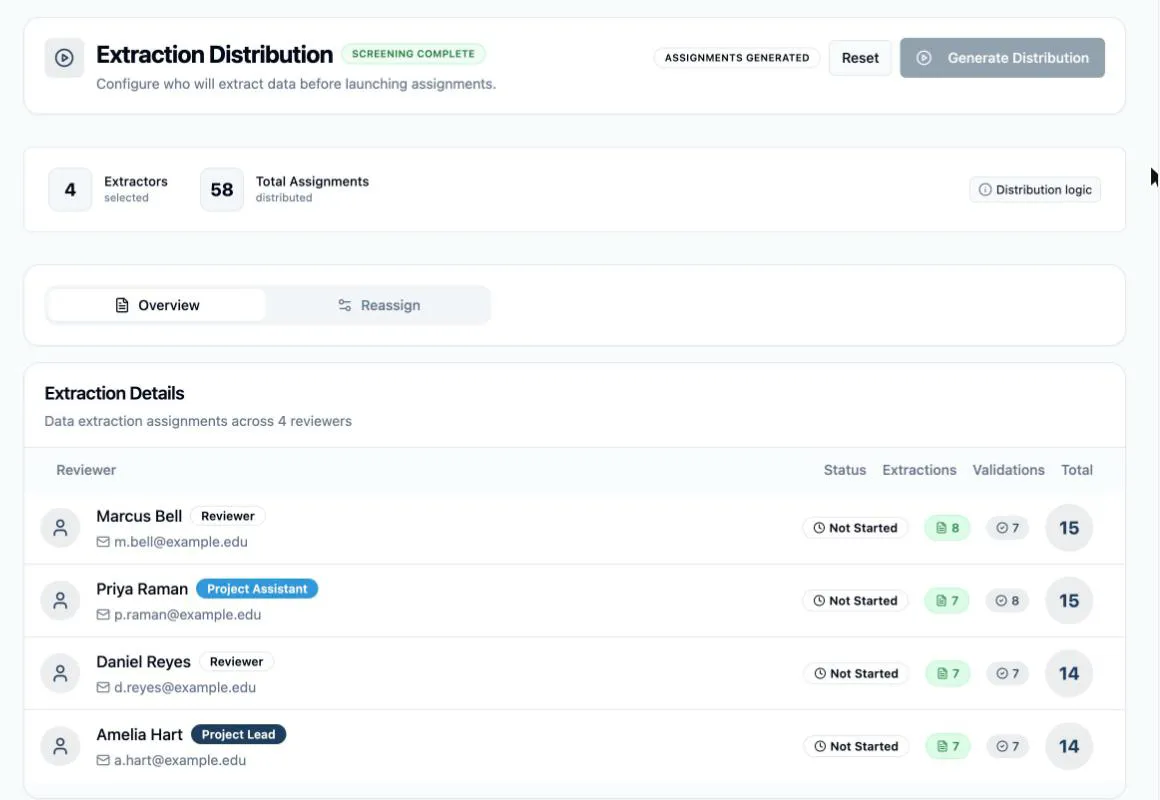
Roles alternate across the corpus. Nobody is only an extractor or only a verifier; the split gives each person a balanced mix of both, which is exactly what the Extractions and Validations columns in the Extraction Details table count. With three or more people the pairing rotates too, so the same two aren’t always checking each other’s work.
Distribute
Section titled “Distribute”-
Check the Projected distribution numbers match what you expect.
-
Click Distribute. A banner reads Distributing extraction assignments… while the work runs in the background — you can leave the page.
-
When it finishes, the header gains an Assignments generated badge, and the Extraction Details table lists each reviewer with their Extractions, Validations, and Total counts. Every assigned reviewer gets an in-app notification.
Reassign papers later
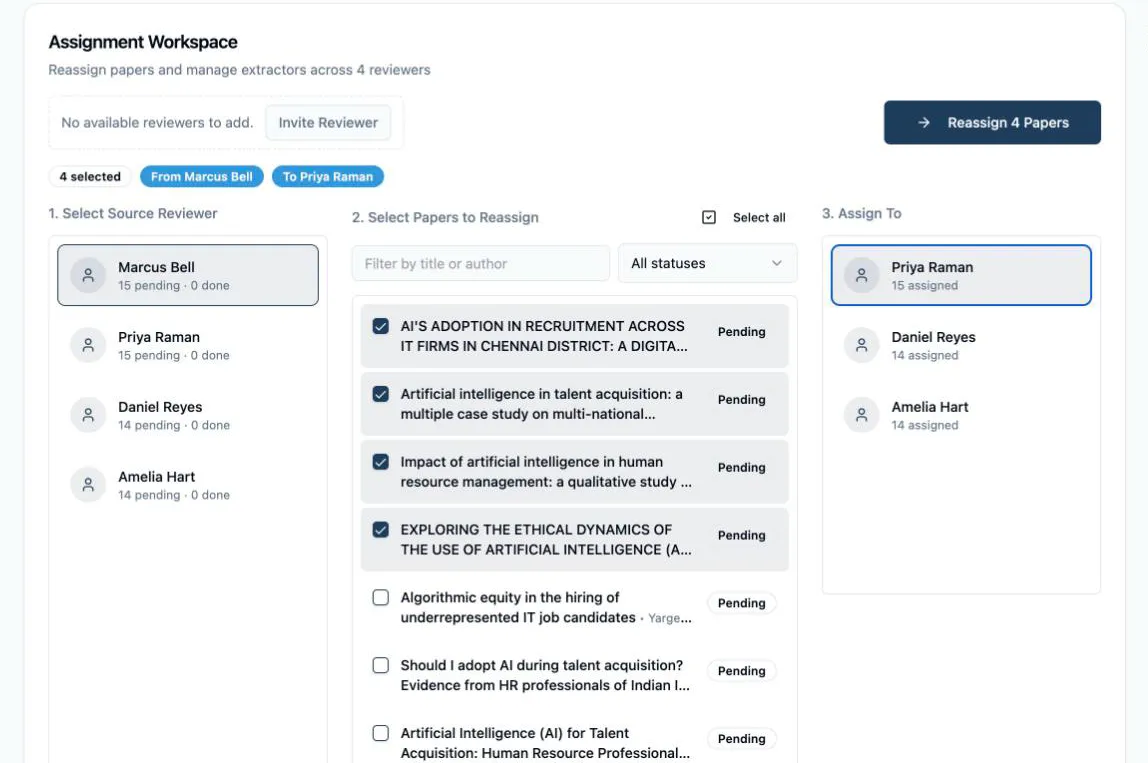
Section titled “Reassign papers later”Someone drops out, or the balance turns out wrong in practice — the Reassign tab handles it without disturbing anyone else’s work. The Assignment Workspace walks left to right:
-
Select Source Reviewer — the person whose papers are moving. Each row shows their pending · done counts.
-
Select Papers to Reassign — filter by title or author and by status, tick papers individually or Select all.
-
Assign To — pick the receiving reviewer, then click Reassign N Papers.
To hand work to someone who isn’t in the distribution yet, pick them under Add extractor… and click Add first — they join with zero papers, and you reassign onto them. That control only appears when there is someone to add: once everyone in the project is already an extractor, it reads No available reviewers to add and offers Invite Reviewer instead, as below.