

How to link PDF evidence to your answers
An extraction form full of answers is only as trustworthy as the passages behind them. In the extraction workspace you can pin any answer to the exact text in the PDF it came from — every mark is attached to a specific field, so “Sample Size: 150” carries the sentence that says so. The verifier sees your evidence when checking the paper, and it stays on the record afterwards.
Start from the field
Section titled “Start from the field”When you know which answer you’re evidencing, work field-first:
-
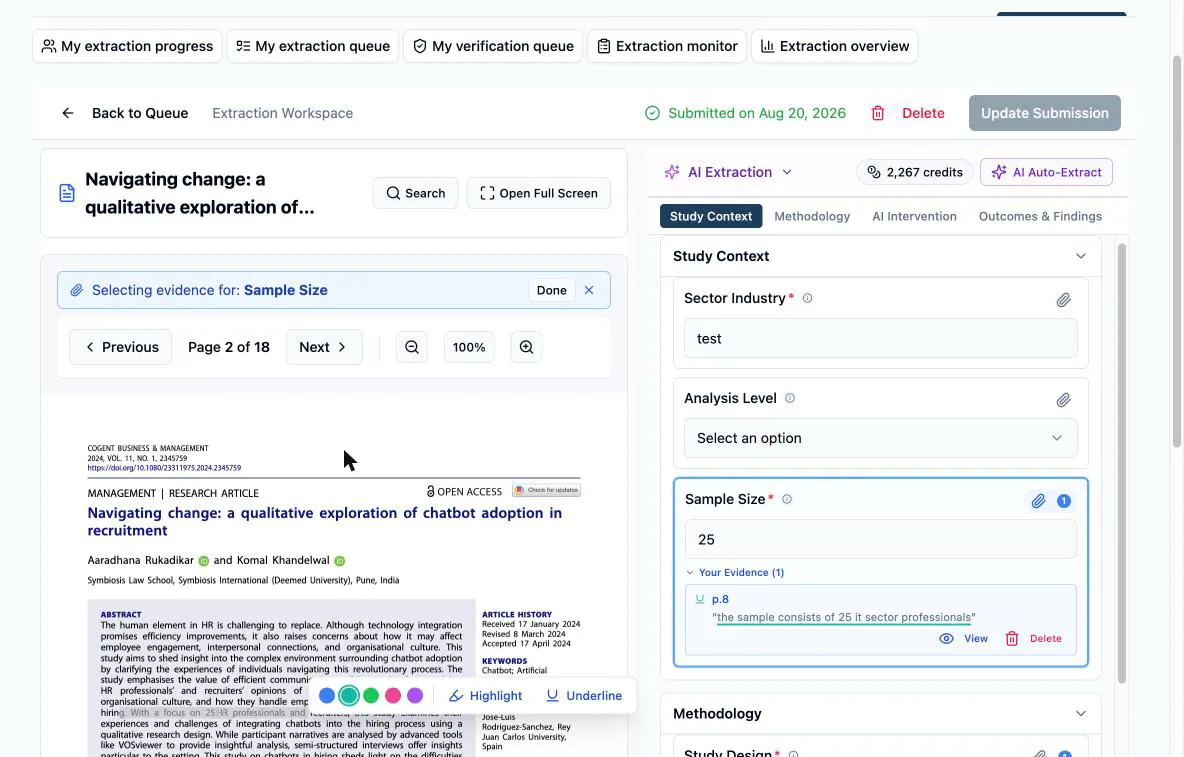
Click the paperclip on the field (its tooltip reads Link evidence from PDF). The field lights up blue and a bar appears above the PDF: Selecting evidence for: followed by the field’s name.
-
Select the supporting passage in the PDF and choose Highlight or Underline from the menu that appears. Pick a swatch at the left of the menu first if you want something other than blue — the choice sticks for your next marks, saved in your browser. The mark is saved and linked to the field immediately — its name appears in a small label under the mark.
-
Keep selecting passages if the answer draws on several, then click Done on the bar (or the paperclip again) to stop.
Start from the paper
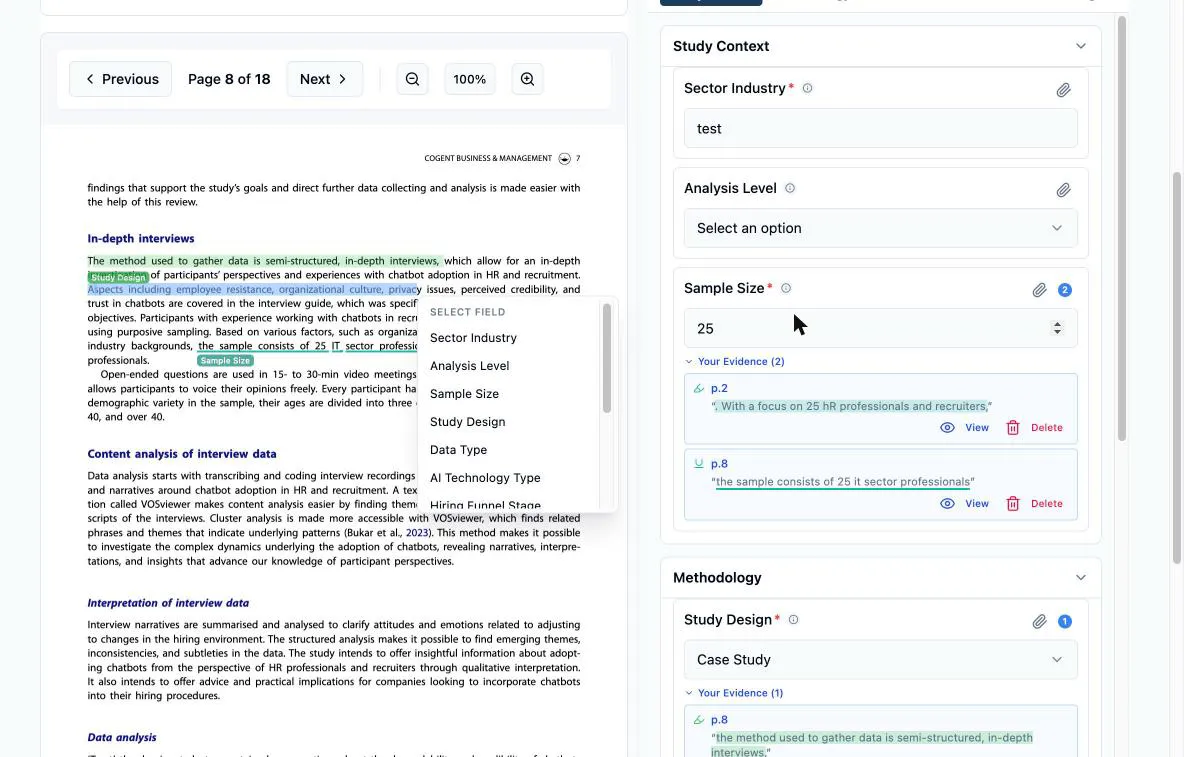
Section titled “Start from the paper”Reading front to back, you’ll often hit the evidence before you’ve typed the answer. Select the passage anyway: with no field active, the menu offers Highlight, Underline, and Link to field — any of them opens the Select field list of your template’s fields, because every piece of extraction evidence belongs to a field. Pick one and the mark is created and linked in one step.
Review and manage the evidence
Section titled “Review and manage the evidence”Under each field, its marks collect into Your Evidence (N): the quoted excerpt, the page it sits on, a View button that jumps the PDF to the exact spot, and Delete to remove a mark that turned out wrong. The paperclip’s count badge keeps the tally visible even when the list is collapsed.
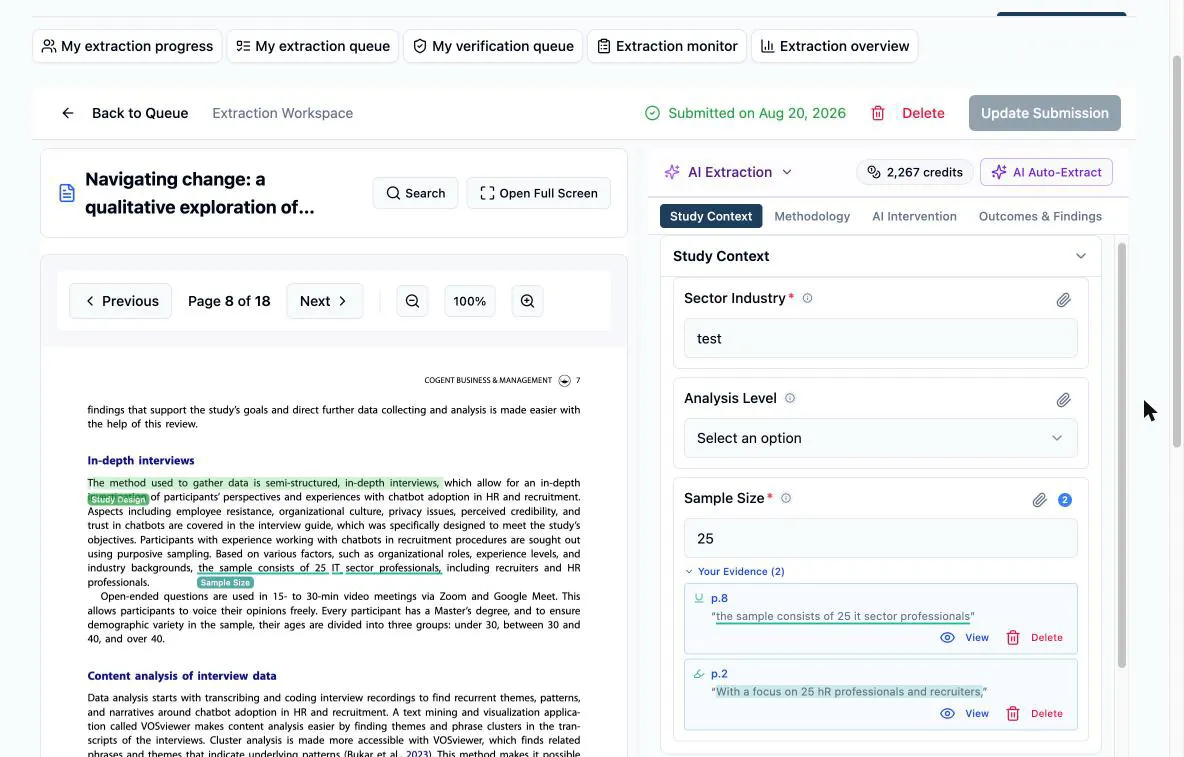
Your marks take the color you choose (blue by default) from the row of swatches at the left of the menu, each carrying the field’s name on a chip. On a paper you have also run AI extraction over, the AI’s supporting passages render as a second layer, and an Evidence legend appears above the PDF naming its roles — Primary, Supporting, Conflicting, Contextual. That keeps the two apart at a glance: the AI’s citations are the bordered passages, yours are the flat filled ones with a chip. The sparkles button in the PDF toolbar hides the AI layer, and the button beside it narrows it to the field you’re linking right now.
Where the evidence goes
Section titled “Where the evidence goes”When a verifier opens the paper, your highlights render on their copy of the PDF and each field’s evidence list sits under the answer they’re checking — so agreeing with you takes one View click, not a re-read of the paper. On solo projects the audience is the record itself (and you, months later, when a reader asks where a number came from).
Validation closes the record. Once the verifier validates the paper — or the project is archived — the paperclips disappear from the fields and Delete goes with them, leaving View as the only action. The evidence set is frozen exactly as it stood when the answers were agreed, so what the record shows is what the reviewers actually saw.