

How conflicts are detected
With two or more independent reviewers, some papers will come back with contradicting votes. That is what independent screening is for, not a fault in it. Littview compares the votes on every paper as they arrive, decides automatically the ones where reviewers agreed, and hands you only the genuine disagreements.
What happens to a paper’s votes
Section titled “What happens to a paper’s votes”A paper isn’t judged until every reviewer assigned to it has decided. Until then it counts as Pending — including papers a reviewer parked with Save for Later, which is why a parked paper holds up its paper as well as its reviewer.
Once the last review lands, the votes are compared against the project’s agreement threshold and the paper takes one of three outcomes:
- Auto-Included — enough reviewers voted Include to clear the threshold.
- Auto-Excluded — enough voted Exclude.
- Conflict — neither side cleared it. This one comes to you.
Settle a conflict and the paper becomes Resolved. Those five labels are the same everywhere they appear: the conflict list, the workspace header, and the Screening Overview.
Set the agreement threshold
Section titled “Set the agreement threshold”In the project sidebar under Conflicts, click Threshold settings. The page reads the number of reviews per paper from your saved distribution and shows it at the top, because everything else follows from it.
The blue card names the Recommended threshold and the arithmetic behind it — a simple majority of the reviews on each paper, printed as 2 of 3 reviews must agree (67%). At two reviews per paper there is no majority short of unanimity, so the recommendation is 100% and any split is a conflict. That’s the setting most two-reviewer reviews want.
To depart from it, turn Use recommended threshold off and drag the Custom threshold slider, which runs from 50% to 100% and is labelled with the trade-off it makes: Fewer conflicts at one end, More conflicts at the other. Click Save Settings to apply it — the button reads No Changes until you’ve moved something and flips to Settings Saved once it’s stored.
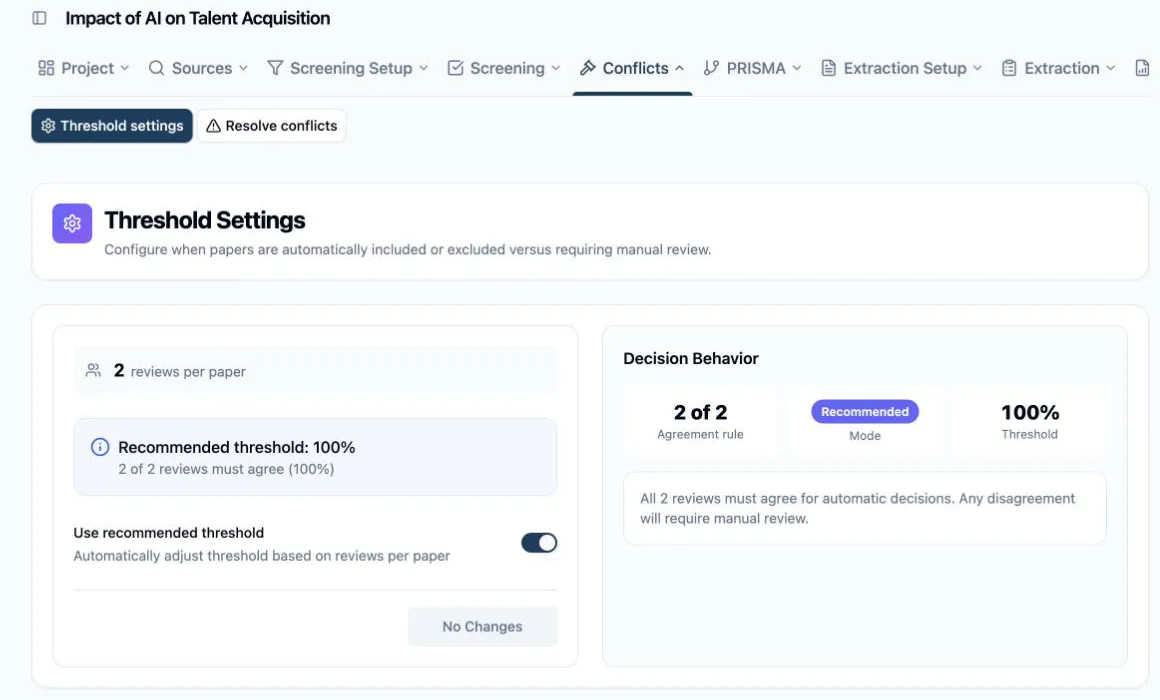
The Decision Behavior panel on the right is the part worth reading twice. It restates your setting as an Agreement rule (2 of 2), a Mode (Recommended, Custom, or Locked), and the Threshold percentage, then spells out the consequence in a sentence: All 2 reviews must agree for automatic decisions. Any disagreement will require manual review. Check that sentence before screening starts — it’s the difference between a handful of conflicts and hundreds.
Two states lock the controls. With no saved distribution, an amber card points you at distributing papers first — there are no reviews per paper to reason about yet. With one review per paper, thresholds are meaningless (every decision is already final at 1 of 1), so the controls disable themselves and the mode reads Locked.
Where conflicts show up
Section titled “Where conflicts show up”Under Conflicts, Resolve conflicts opens Conflict Management — the queue of everything the votes produced. Three tabs carry live counts: Conflicts (waiting for you), Pending (still missing a review), and Completed (all reviews in). Above them, a strip counts the same set six ways: Pending, Completed, Auto-Included, Auto-Excluded, Conflicts, and Resolved.
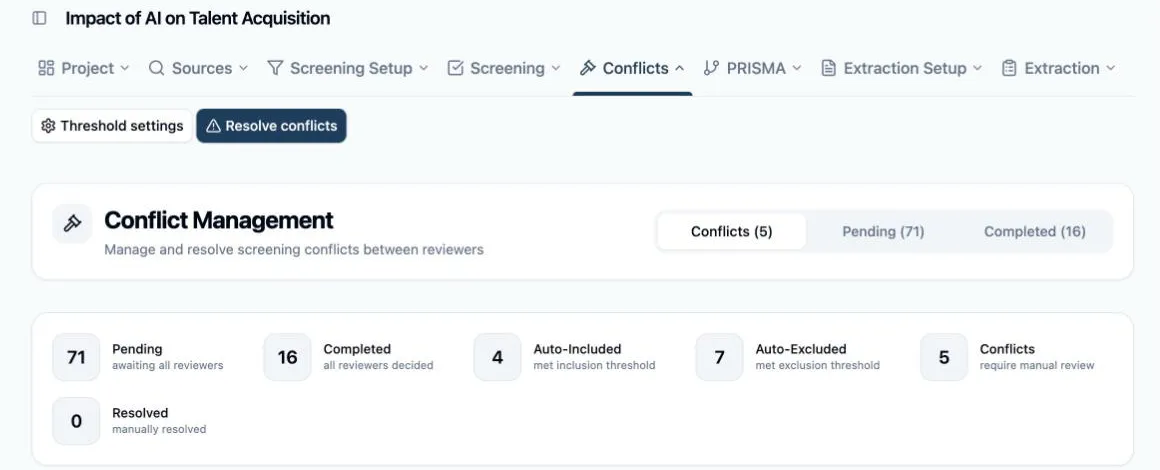
The same numbers reach you without opening the page: the project home dashboard counts open conflicts, and the Screening Overview reports a conflict rate over the papers that are fully screened — the figure to watch, since a rate that keeps climbing usually means a criterion is being read two different ways.
Next: How to resolve screening conflicts — the workspace where each one gets settled.