

How to import PDFs from Zotero
The Zotero import is a round trip for collecting full texts: export your PDF-less references out of Littview, let Zotero find and hold the PDFs, then bring the whole folder back — each PDF lands on the reference it belongs to. Note what this flow is for: it attaches PDFs to references you’ve already imported — it doesn’t create references.
You’ll find it in the project sidebar under Sources → PDF sources, on the Zotero Import tab (Owner and Assistants only).
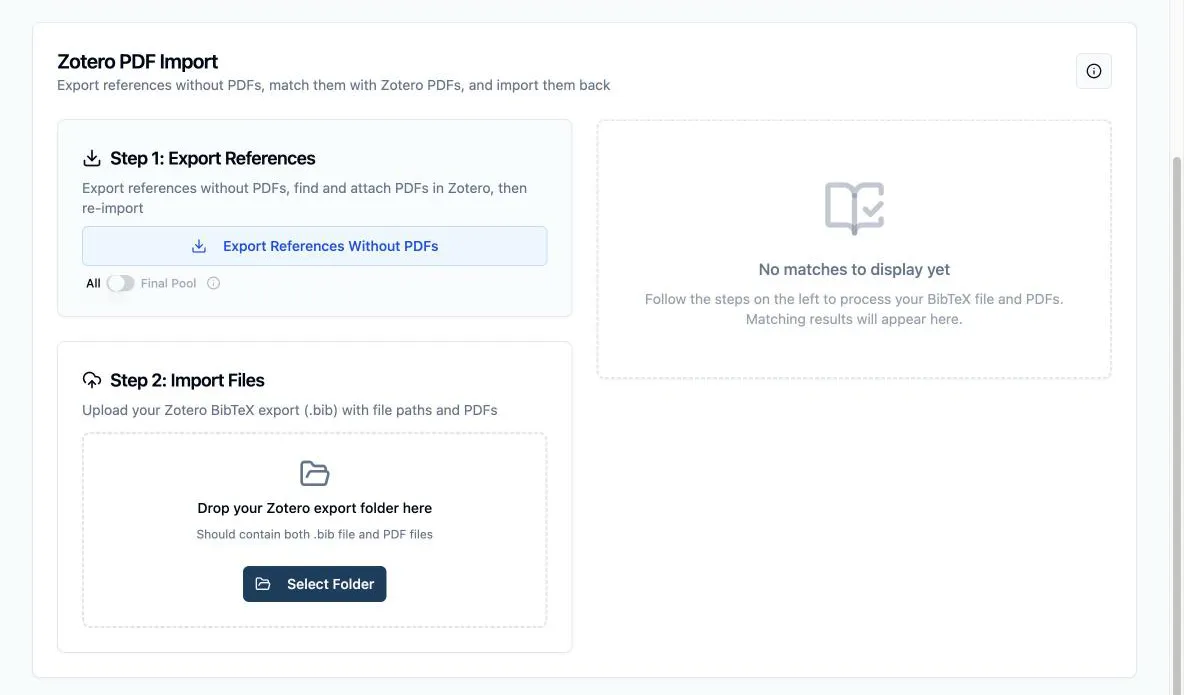
Round trip through Zotero
Section titled “Round trip through Zotero”-
Click Export References Without PDFs. This downloads a
.bibfile of every reference still missing a full text — with the Final Pool toggle on, only the papers that passed screening. -
In Zotero, go to File → Import and select the file. Now collect the PDFs there: select the items and use Find Available PDF, or drag files you already have onto each item.
-
Export back out: select the references in Zotero, right-click → Export Items…, choose BibTeX format, and check Export Files. Zotero writes a
.bibfile plus afiles/subfolder holding the PDFs. -
Back in Littview, drop that entire exported folder onto the upload area — the
.biband thefiles/folder together (on Chrome or Edge you can use Select Folder). -
Click Process & Match Files. Each PDF is paired to its reference automatically, with a badge on every match showing how it was made.
-
Review the matches in the Reference-PDF Matches panel, link any file that didn’t pair automatically, then click Upload PDFs to References.
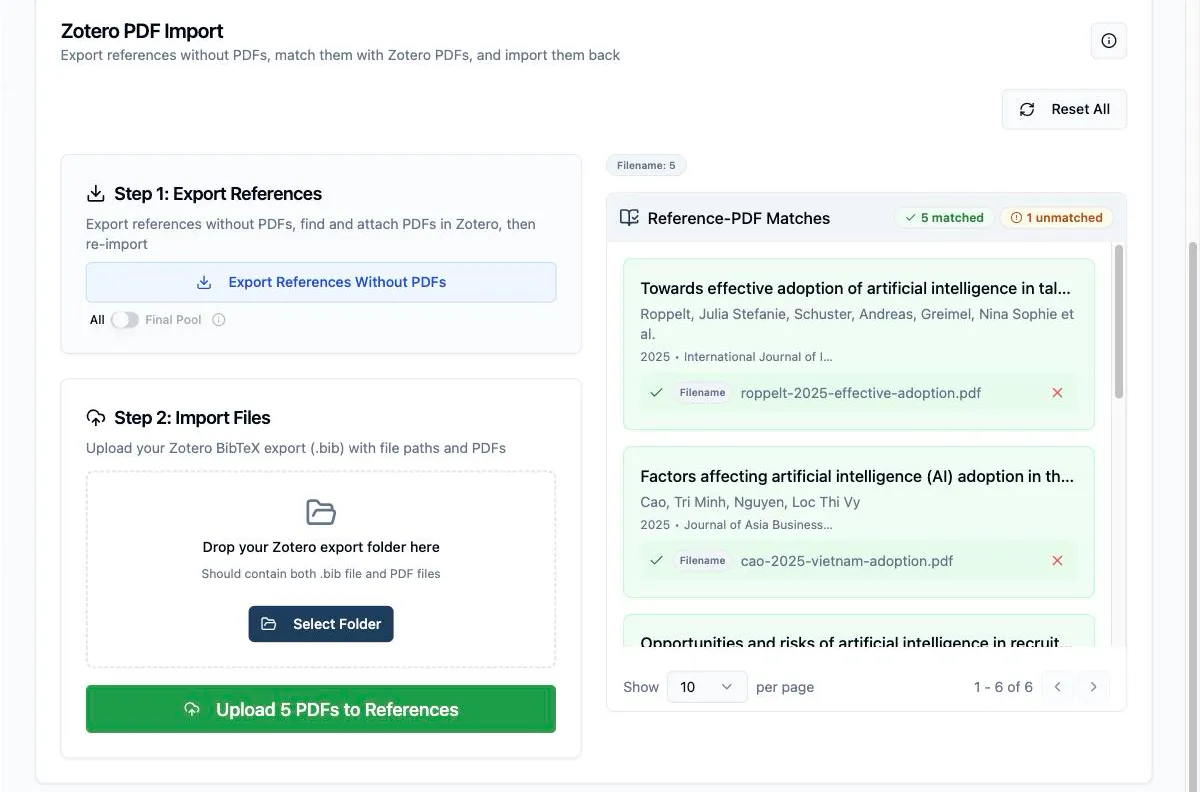
When the upload completes, the PDFs are attached and the Attach PDFs tab’s coverage counts reflect them; Start New Import resets the tab for another round.
Limits and gotchas
Section titled “Limits and gotchas”- Export from Zotero in BibTeX specifically — not RIS or CSV; the round trip depends on it.
- Individual PDFs must be under 10 MB; oversized files are skipped and listed in a warning so you know exactly which ones.
- Up to 1,000 files per import — split a bigger collection into rounds.
- Always start from the Littview export rather than an existing Zotero collection.