

How to review your included papers
Included papers lists every paper that survived screening, each carrying a record of how it got in — and exports the set as BibTeX, CSV, or RIS. It is also the front door of the PRISMA section, the reporting side of your review: the included set here, the excluded set with the criteria that removed each paper, and the flow diagram that turns both into the figure journals ask for.
Find a paper in the included set
Section titled “Find a paper in the included set”In the project sidebar under PRISMA, click Included papers. The page opens on two tabs: Papers List, covered here, and Analytics, which profiles the same set as charts — that one has its own guide.
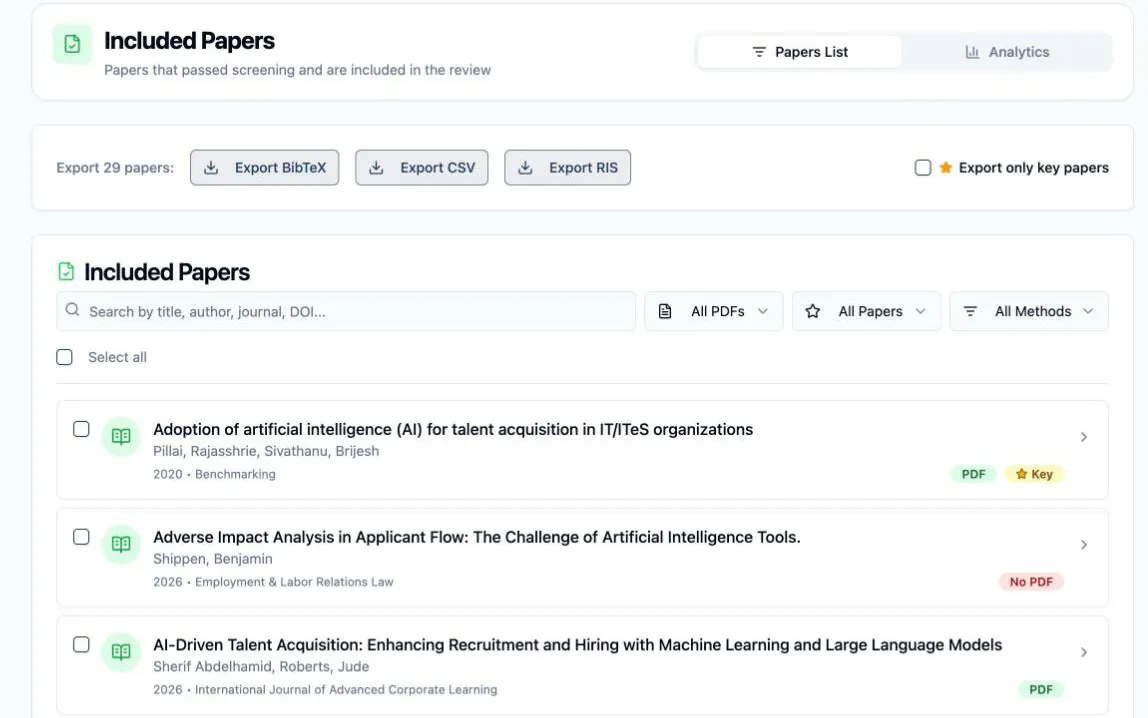
Every row shows the title, authors, year and journal, a green PDF or red No PDF badge, and a starred Key badge on papers marked as key. Above the list, the search box matches title, author, journal, or DOI as you type, and three dropdowns narrow the set: With PDF / Missing PDF, Key Papers / Non-Key, and the inclusion method (Unanimous, Auto-Included, or Resolved). A Clear button appears once any dropdown is active, and the list pages at 10, 25, 50, or 100 rows.
How each paper got in
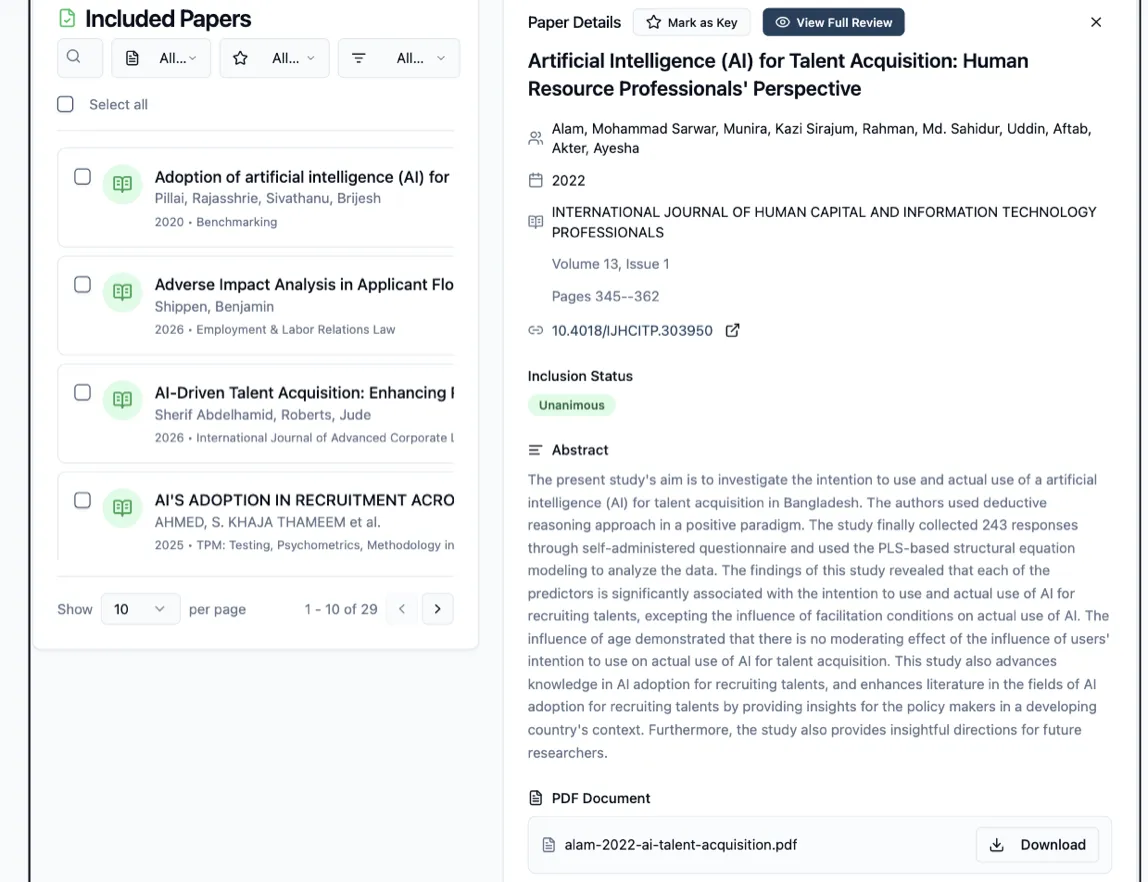
Section titled “How each paper got in”Click a row and the Paper Details panel opens beside the list: the full author list, year, journal, volume, issue and pages, the DOI as a link to the publisher, and the abstract. The part worth reading is Inclusion Status — a badge recording which of the three routes brought the paper in:
- Unanimous — every reviewer assigned the paper voted to include it.
- Auto-included — the votes split, but the includes cleared the project’s agreement threshold. Only possible at three or more reviews per paper; at two, any split is a conflict.
- Manual resolution — the disagreement went to conflict resolution and an Owner or Assistant settled it as include.
That badge is the audit trail of the decision, and the method dropdown above the list slices the whole set by it — pull up just the Resolved papers, say, to re-read the judgment calls before you write them up.
At the foot of the panel, PDF Document shows one of two things. When a full text is attached, it is a single file row: the file name and a Download button. When none is, it is a dashed panel badged No PDF attached, holding an Upload PDF button and a row of lookup links — OpenAlex and Scholar always, plus Publisher and DOI when the record carries them. Open a link, find the full text, upload it there, and the paper’s badge and the Missing PDF filter update without leaving the page.
Read the full review behind a decision
Section titled “Read the full review behind a decision”View Full Review, in the Paper Details header, opens Paper review — the read-only audit of how this paper was screened. Nothing on it can be edited; it exists so that months later, or at peer review, “why is this paper in?” has an answer with names and dates on it.
The left side is the paper as the reviewers saw it: the PDF with their highlights drawn over it, or the abstract carrying the same highlights when no full text is attached. The right side, Decision audit, reads top to bottom:
- The outcome — Included, with the sentence that explains it: Unanimous — all 2 reviewers voted to include, or the threshold the vote met.
- The vote bar — includes and excludes as counts and percentages, with a marker at the project’s agreement threshold, so you can see how much room the decision had.
- Reviewer Decisions — one card per reviewer with their Include badge and the criteria tags they ticked while screening.
- Timeline — who decided what, and on which date, in order.
- Reviewer Evidence & Notes — pick a reviewer to see their highlights and screening notes; View on any entry scrolls the paper to that passage.

Mark the papers that matter
Section titled “Mark the papers that matter”The Mark as Key button sits in the Paper Details header. Click it on the studies your review leans on — the landmark papers, the ones the discussion will cite — and the button flips to Key Paper, the row picks up the starred Key badge, and the paper joins the Key Papers filter. The flag travels with the paper: the Evidence Table shows the same star, and the export bar can ship key papers on their own.

Export the set
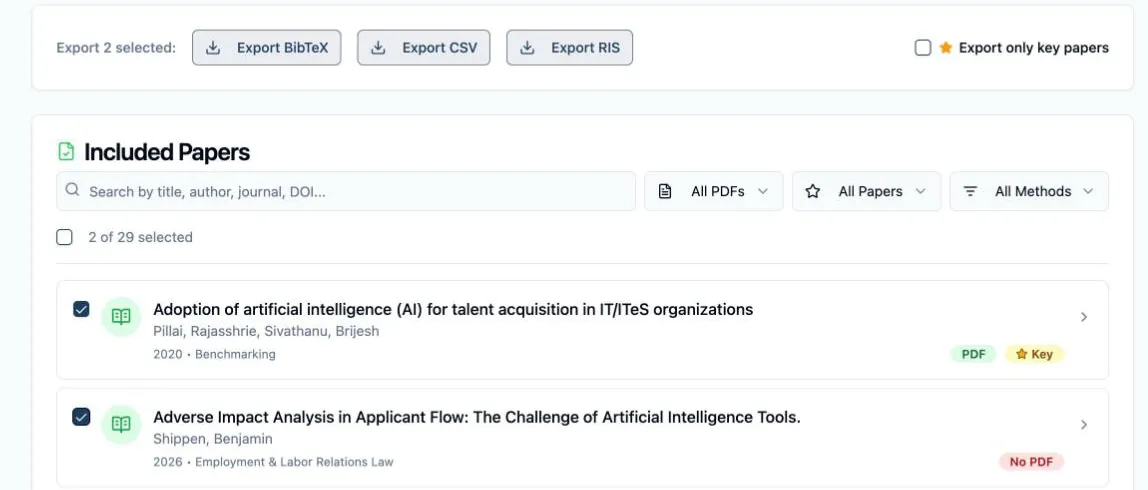
Section titled “Export the set”The bar above the list holds three buttons — Export BibTeX, Export CSV, and Export RIS — and its label tells you exactly what will leave before you click: Export 29 papers means everything matching the current filters, ticking rows switches it to Export 2 selected, and the Export only key papers checkbox overrides both to ship just the starred set.
BibTeX and RIS drop straight into a reference manager, so citing the included studies means importing one file, not re-typing anything. The CSV carries the full metadata plus an Inclusion Method and a Has PDF column per paper — the audit trail leaves with the data.
Next: How to read your included-paper analytics — the same set as charts: decisions, criteria, tags, years, and journals.