

How to verify an extraction
On projects with two or more extractors, every paper’s extraction is checked by a second person before it counts as done. Verification isn’t redoing the work — it’s reading the extractor’s answers against the paper, correcting what’s wrong, and validating the result. Everyone plays both parts: you verify papers that others extracted while they verify yours.
Your verification queue
Section titled “Your verification queue”Sidebar → Extraction → My verification queue. It works like the extraction queue, with one difference that defines the rhythm: a paper is only verifiable after its extractor submits. Until then its card reads Awaiting extraction with a lock, and if everything is still locked, the top bar says so plainly — N papers waiting on extraction — you can verify each one as soon as its extractor submits — instead of leaving you with an empty Start Verification button.
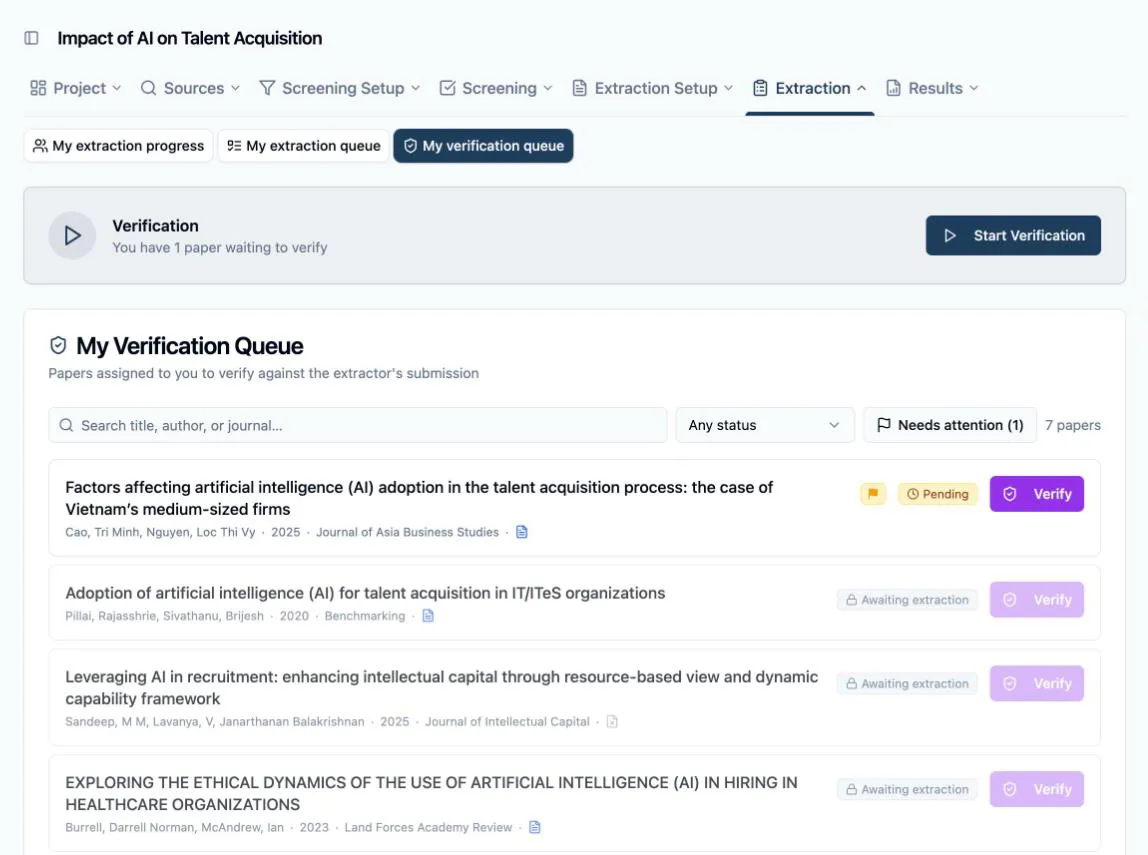
Ready papers show a purple Verify button. Watch for the amber flag some cards carry: the extractor marked that paper Needs attention — a caveat, an uncertainty, a PDF problem. The Needs attention filter chip pulls exactly those papers, so you can triage them first.
Check the extractor’s work
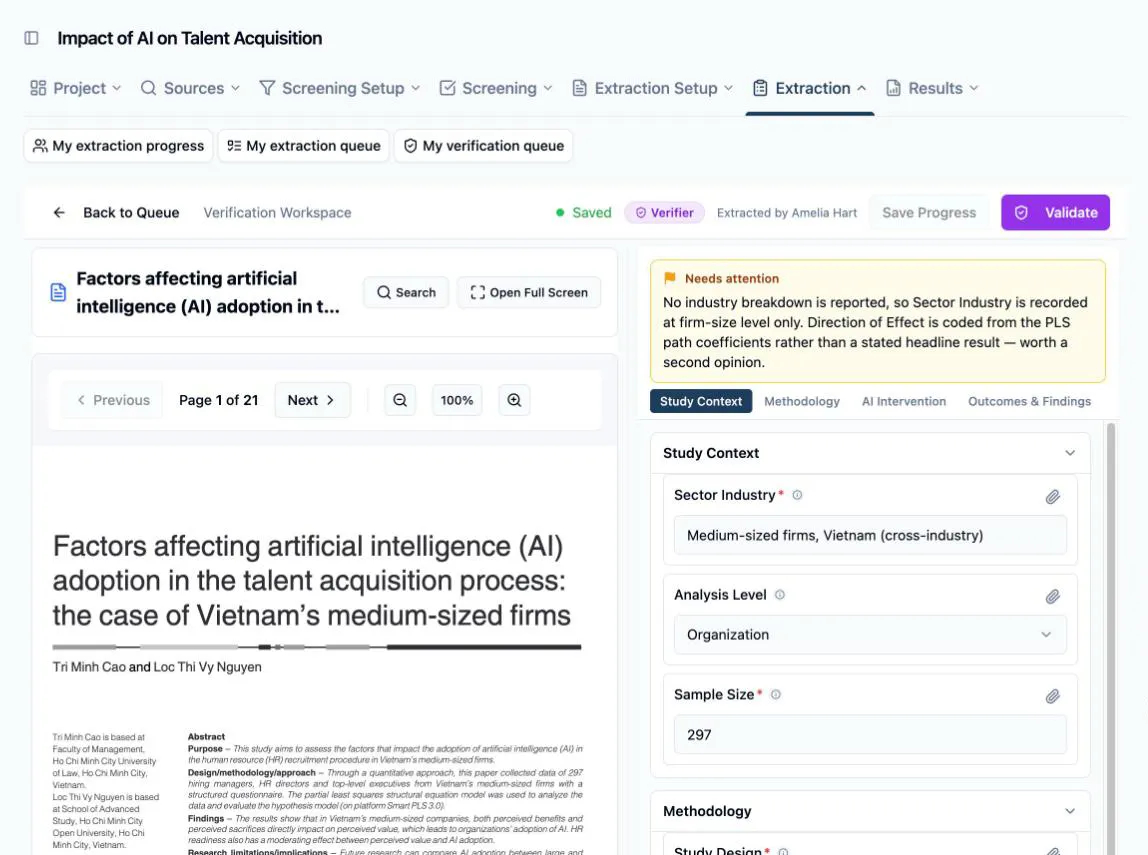
Section titled “Check the extractor’s work”Verify opens the Verification Workspace — the same split view the extractor had, with the PDF on the left and the form on the right, but wearing a purple Verifier badge and an Extracted by line so it’s clear whose work you’re reading. Three things are laid out for the check:
- The form arrives prefilled with the extractor’s answers — you read and correct, not retype.
- Their note and Needs attention flag, if any, sit at the top of the form.
- Their evidence links render on the PDF and under each field, so confirming an answer is one View click to the passage behind it.
Correct and validate
Section titled “Correct and validate”Change any field you disagree with — it picks up an amber Modified badge, keeping your interventions visible as you work. Save Progress stores a half-done check for later.
-
Click Validate when you’ve been through the form.
-
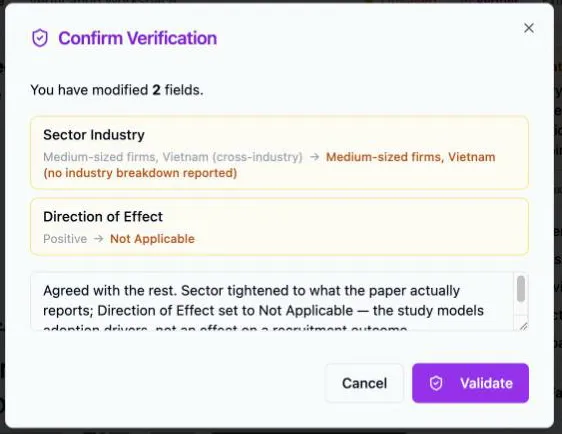
The Confirm Verification dialog plays back your corrections — each changed field with its original and new value side by side — or states All fields will be marked as agreed if you changed nothing.
-
Optionally add Notes, then confirm with Validate. Required fields must all be filled to complete the validation.
After validation
Section titled “After validation”The paper is done: it shows Validated in your verification queue (and Completed in the extractor’s), the extraction record locks on both sides — the extractor can no longer edit their answers, and reopening the paper shows it read-only — and your corrections are counted on the progress pages. Field by field, the record keeps what was agreed and what was corrected, so the review can always say how much verification actually changed.