

How to track your screening progress
My screening progress counts your own queue in a project and nobody else’s. It reads the decisions themselves, so a call recorded a second ago is already in the numbers; there is nothing to refresh, recompute, or export.
In the project sidebar under Screening, click My screening progress. Everyone with papers assigned has this page — reviewers, Assistants, and the Owner when they screen as well.
The six tiles
Section titled “The six tiles”- Total Assigned — papers distributed to you.
- Your Progress — the percentage you’ve decided, with N of M reviewed under it and a bar.
- Included and Excluded — your calls each way, each with its share of your assignments.
- Pending Review — assigned, not yet decided.
- Saved for Later — the papers you parked with Save for Later.
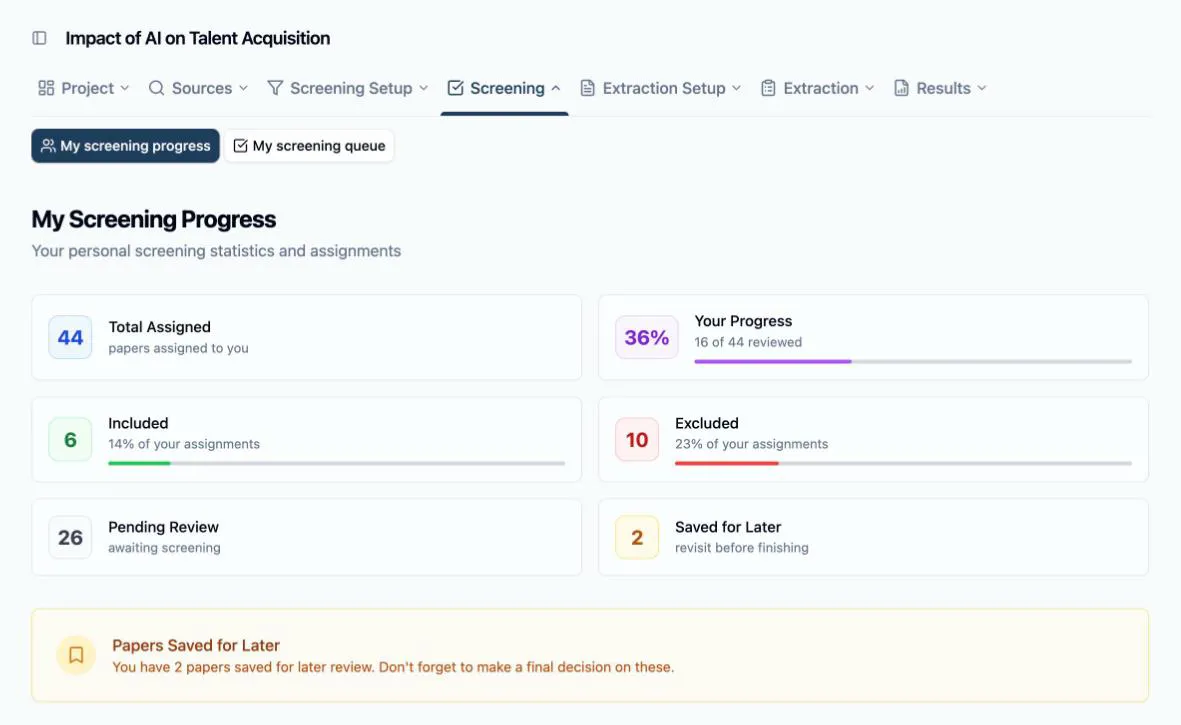
If the page greets you with No Papers Assigned Yet or No Assignments Found, the distribution hasn’t reached you — see How to distribute papers to reviewers.
What moves the bar
Section titled “What moves the bar”Progress counts decided papers only: Include and Exclude move it, Save for Later does not. Parked papers sit in their own tile and keep you short of 100% until you come back and call them — which is exactly what you want a progress figure to do. While any are parked, an amber Papers Saved for Later card sits under the tiles as the reminder. Decide the last of them and the page answers with All Done!.
Progress while you work
Section titled “Progress while you work”You don’t have to open the page to keep an eye on things. The project home shows you a Your progress tile over your own queue; inside screening, the queue card counts N of M papers left to review and the workspace footer tallies N reviewed / M total as you go. Your decisions land in all of them the moment you make them — and in the project’s totals, which the Owner and Assistants read on the screening overview.