

How duplicate detection works
The same paper usually arrives from more than one database. Your Scopus export and your Web of Science export both contain it, so it imports twice — deliberately, because deleting it at import would hide how much your search actually returned. Deduplication is the stage where you deal with those copies: Littview groups the records that look like the same paper, and you decide which one to keep.
Do this before you distribute papers for screening. A copy that survives into screening gets screened twice by different reviewers, wastes their effort, and quietly inflates every count in your final report.
What a duplicate group is
Section titled “What a duplicate group is”Detection reads every reference in the project — across all libraries, not one at a time — and gathers the records that appear to describe the same paper into a group. A group is a proposal, not a verdict: Littview is saying “these look like the same paper”, and you confirm or reject it.
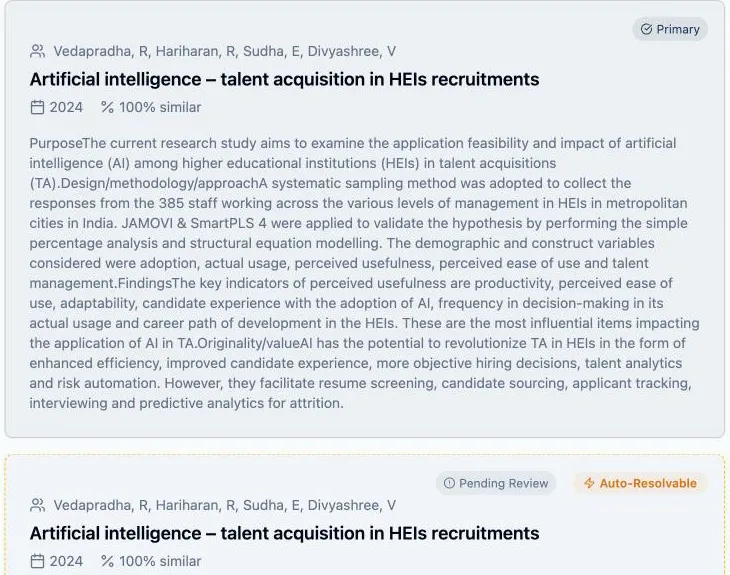
Each record in a group carries a similarity percentage, shown on the record as 92% similar. That number reflects how closely its metadata matches the rest of the group — title, publication year, authors, and identifiers like the DOI. Records that came from a clean export with complete metadata group more reliably than sparse ones, which is a good reason not to strip fields out of your exports before uploading.
One record in each group is marked Primary. That’s the copy Littview proposes to keep, and it’s chosen for you when the group is created so no group ever arrives without a candidate. You can move the Primary badge to a different record at any time — pick the one with the fullest metadata or the attached PDF.
The four states a record can be in
Section titled “The four states a record can be in”Every record in a group shows a badge telling you where it stands:
- Pending Review — nobody has decided about this record yet. These are what you work through.
- Primary — the copy being kept for this group. Exactly one per group.
- Duplicate — confirmed as a copy of the Primary. It leaves the working set (see below).
- Not Duplicate — you looked and decided it’s a genuinely different paper. It stays in the review as its own reference.
Not Duplicate matters more than it looks. Conference papers later published as journal articles, corrections, and companion papers from the same authors in the same year all trip detection into grouping them. Marking one Not a duplicate is a real decision that keeps the paper in your review, not a way of skipping it.
Re-running detection keeps your decisions
Section titled “Re-running detection keeps your decisions”Detection runs in the background on the server. Once you start it, the page shows an elapsed timer and tells you it’s safe to leave — the run finishes whether or not you stay, and the results are there when you come back. Only one run per project can be in flight at a time, so you can’t accidentally start a second one.
You can run it as often as you like. When it finishes, the summary reads Found N duplicate group(s) across N references, and where it applies, N previously reviewed group(s) were preserved — the groups you already resolved are left exactly as you left them. That’s what makes a supplementary search safe: import the new records later, run detection again, and only the new material needs your attention.
What happens to a confirmed duplicate
Section titled “What happens to a confirmed duplicate”Marking a record Duplicate never deletes it. Nothing in your import is destroyed, and every number stays auditable. What changes is where the record appears and what it’s used for:
- It leaves the References tab and appears on the Duplicate References tab instead, so your working reference list is the deduplicated one.
- It is excluded when papers are distributed to reviewers — no reviewer is ever assigned a confirmed duplicate.
- It is counted as a duplicate removed in your PRISMA flow diagram, feeding the “records after duplicates removed” figure that PRISMA requires you to report.
The Valid References count on the Duplicate Detection tab is your deduplicated total: the number of distinct papers you’re actually about to screen.
Next: How to review and resolve duplicates walks through the screen itself.