

How to distribute papers to reviewers
Distribution is the second half of designing your screening: you’ve written the criteria, now you decide who screens what, and how many opinions each paper gets. Littview takes those two choices and builds the assignments itself — every paper reaching the depth you set, every reviewer carrying a comparable share.
You’ll find it under Screening Setup → Paper Distribution. Like the rest of Screening Setup, it’s the Owner’s and Assistants’ screen; reviewers can open it but every control is read-only for them.
Pick who screens this round
Section titled “Pick who screens this round”Reviewer Selection lists everyone with active access to the project, and you tick the ones taking part. Two things are worth noticing here.
You are on the list. The project creator appears badged Project Lead and is selected by default — a review where the lead also screens is normal, and Littview treats you as one of the reviewers when it balances the workload. Untick yourself if you’d rather stay out of the queue.
Selection is per round, not permanent. Someone left unticked keeps their access to the project; they simply get no papers in this distribution. That’s the same mechanism you’ll use later if a reviewer has to step away — see How to redistribute papers.
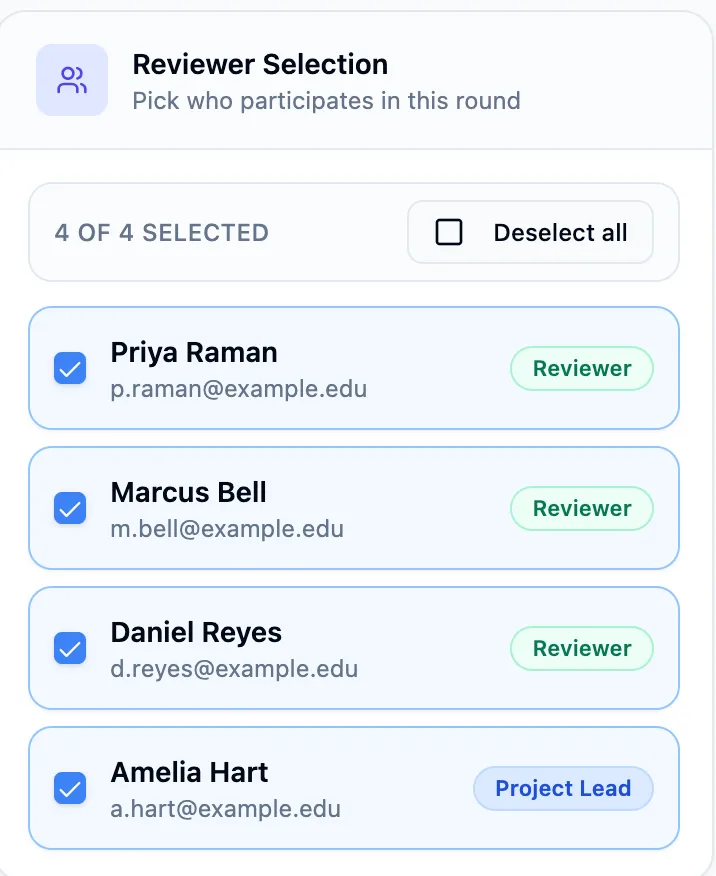
Set the review depth
Section titled “Set the review depth”Review Depth is how many independent reviewers evaluate each paper. Two is the conventional choice for a systematic review, and it’s what makes the rest of the workflow work: two independent opinions per paper produce agreement you can report, and disagreement Littview routes to Conflicts instead of leaving it for someone to notice.
The maximum is the number of reviewers you selected — you can’t ask for more opinions than you have people. The line under the stepper does the arithmetic out loud, and Generation Preview beside it tells you roughly how many papers each person will carry, before anything is written.
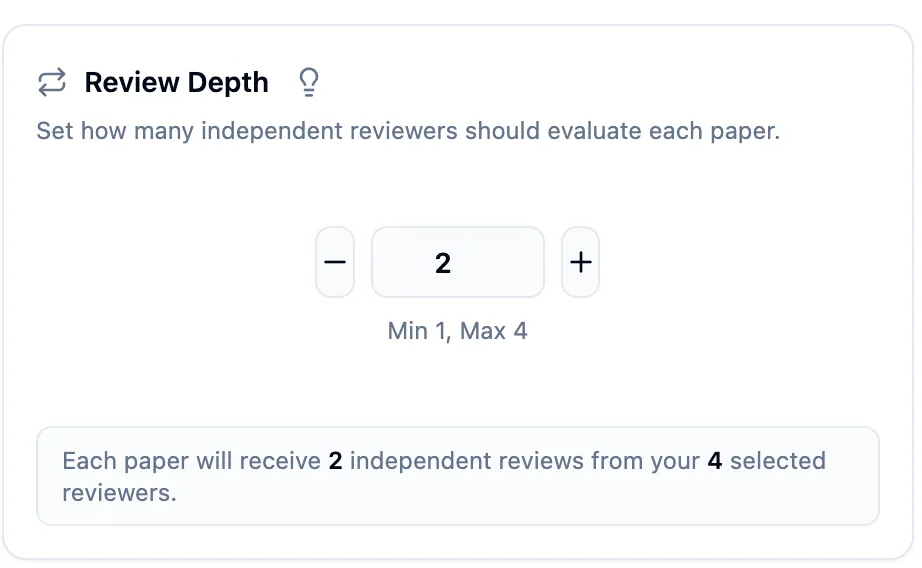
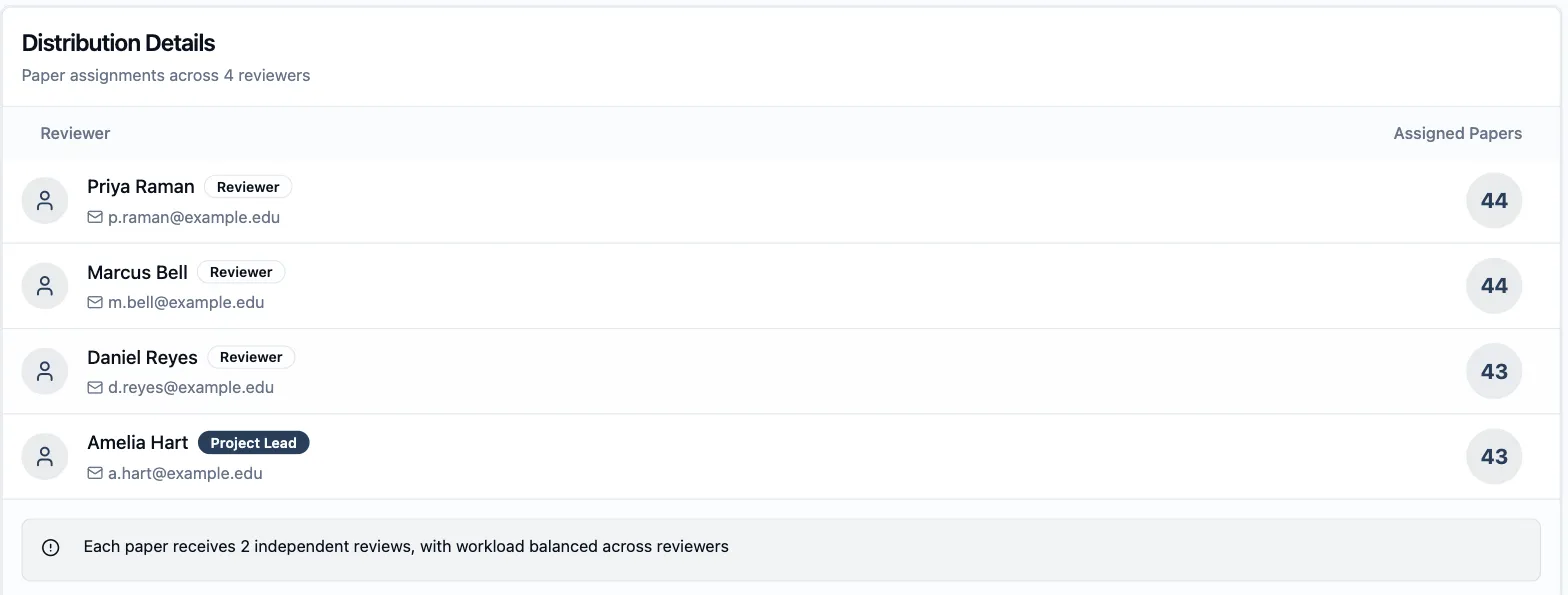
No paper is ever assigned to the same reviewer twice. At depth 2 that means two different people read every paper, which is what independence requires.
Generate, check, then save
Section titled “Generate, check, then save”Generating a distribution doesn’t assign anything. It produces a preview you’re expected to read first.
-
Click Generate Distribution. The page switches to the Results tab with a banner reading This distribution is a preview — nothing has been assigned yet, and a Draft badge next to the save button.
-
Read the summary row: total papers in scope, reviewers selected, reviews per paper, papers already screened, and total reviews. Eighty-seven papers at depth 2 is 174 reviews.
-
Check Distribution Details — every selected reviewer with the number of papers they’d get. When the reviews don’t divide evenly, the remainder is spread rather than dumped: 174 across four people comes out 44, 44, 43, 43.
-
If something’s wrong, click Modify Settings to go back and change the selection or the depth. Nothing has been written, so there’s nothing to undo.
-
Click Save Distribution to apply it.
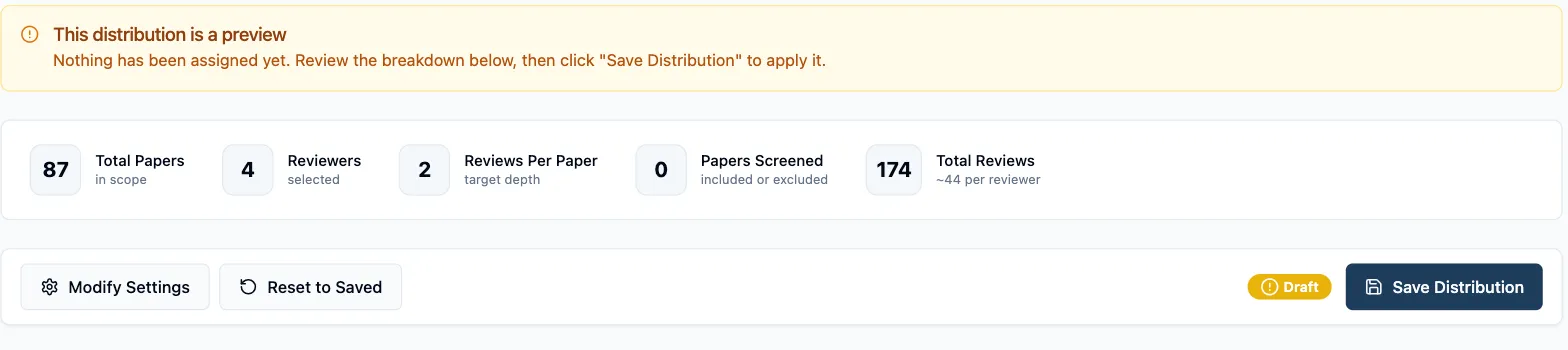
Saving hands the work to the server and tells you so: Running in the background — you can safely leave this page. A large project takes a moment, and closing the tab doesn’t cancel it or leave assignments half-written. The results refresh themselves when it lands.

When it finishes, the Draft badge turns to Saved and the button reads Distribution Saved.

What your reviewers see
Section titled “What your reviewers see”Each reviewer gets an in-app notification — N papers assigned to you for screening — and their papers appear in Screening → My screening queue, ready to work through. Nobody has to be told which papers are theirs, and no reviewer sees another’s queue.
Assignments start as pending and become decisions as people screen; Screening overview tracks that progress for you while it happens.
Next: How to redistribute papers covers what to do when a reviewer steps away or the papers need re-splitting after screening has begun.