

How to invite and manage members
Members are invited by email from one place: Manage Members, inside the project. Only the project’s Owner can invite, change roles, or remove members — assistants and reviewers can open the page but see it read-only. Reviewing alone is fully supported, so skip this article until (and unless) others join your review; you can invite people at any point, including after screening has begun.
Open Manage Members
Section titled “Open Manage Members”In your project, click Manage Members — it sits right next to Project overview at the top of the project (the Invite collaborators card on a new project’s home page leads to the same place). The page opens with a summary of where everyone stands: Total members (including you as owner), Active access, and Pending invites.
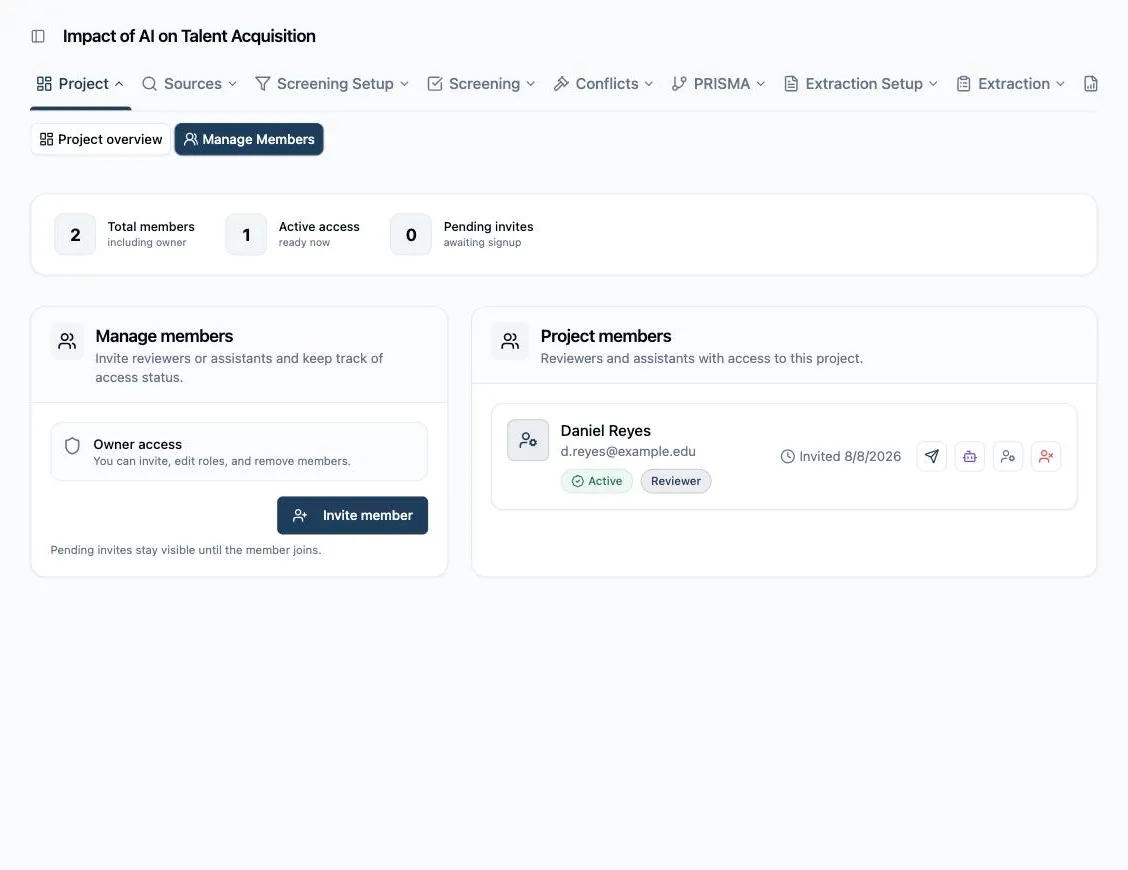
Invite a member
Section titled “Invite a member”-
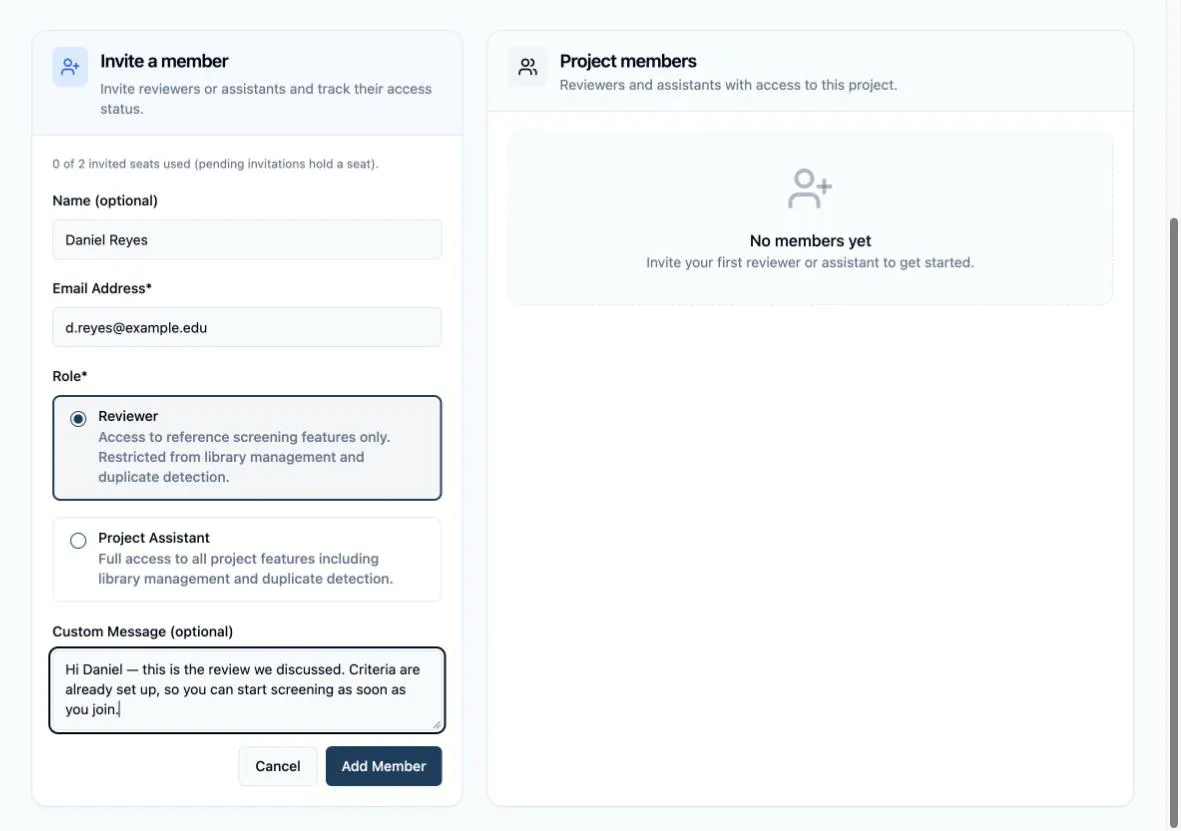
Click Invite member. The Invite a member form opens in place.
-
Enter the person’s Email Address — the invitation is sent there, and it is also what links them to the project. Name is optional; it labels the member in lists until they register.
-
Choose a Role: Reviewer (“Access to reference screening features only. Restricted from library management and duplicate detection.”) or Project Assistant (“Full access to all project features including library management and duplicate detection.”). You can change this later.
-
Optionally add a Custom Message — it is included in the invitation email.
-
Click Add Member.
What happens next depends on the email address. If it already belongs to a Littview account, the member gets access immediately and receives a notification email. If not, they show as Pending and receive an invitation — its Create your account button takes them through registration, and the project appears for them automatically once they sign up with that same address.
Track and manage access
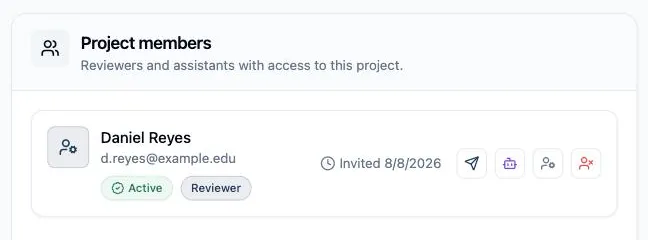
Section titled “Track and manage access”Each member’s card in the Project members list shows their status badge — Active or Pending — their role, the date they were invited, and four controls (owner only):
- Resend the invitation or access email, useful when it landed in spam. There is a 5-minute cooldown between resends to the same member.
- Toggle AI access for this member. AI features are on by default; switched off, that member sees no AI suggestions anywhere in the project and their card shows an AI off badge. Your own access as owner is always on.
- Change the role between Reviewer and Project Assistant — the Update member role form saves with Save Changes. Screening work they have already done is unaffected.
- Remove the member. This revokes their project access immediately and frees their seat.
What each role can actually see and do across the app is the subject of the next article, Roles and permissions in Littview.