

How to attach full-text PDFs
Full texts don’t have to arrive with your references — attach them whenever you have them, in bulk. You drop a folder of PDFs, Littview reads each file and matches it to the right reference automatically, and you confirm the matches before anything is saved. The page is for the Owner and Assistants; reviewers meet the PDFs later, inside screening and extraction.
The Attach PDFs workspace
Section titled “The Attach PDFs workspace”In the project sidebar under Sources, open PDF sources — the Attach PDFs tab is the default. The header counts tell you where coverage stands: Total References, References with PDF, Missing PDFs, and This Session. If your plan caps PDF storage, a PDF storage meter sits below them.
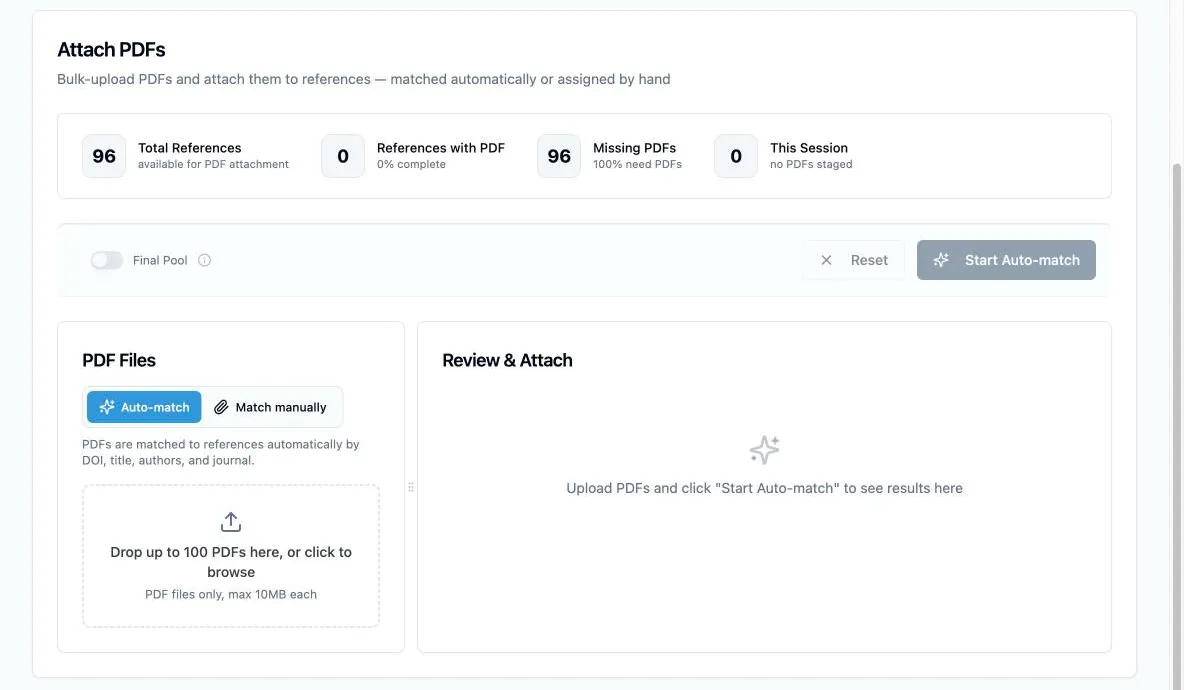
Two controls shape the session before you drop anything:
- Final Pool — a common strategy is to collect full texts only for papers that survived title/abstract screening, rather than for everything you imported. Switch this on and the counts and matching scope to exactly those papers: passed screening, no PDF yet.
- Auto-match vs Match manually — Auto-match reads each PDF and pairs it to a reference by DOI, title, authors, and journal; manual mode uploads the files unmatched and you assign each one yourself. Auto-match is the default and the right choice for almost everything.
Auto-match a batch
Section titled “Auto-match a batch”-
Drag your PDFs onto the upload area — up to 100 files at a time, 10 MB each.
-
Click Start Auto-match. The files upload and matching runs, comparing each PDF’s actual text against your references.
-
In Review & Attach, every PDF appears with the reference it matched and a confidence score. Strong matches come pre-accepted; weaker ones — and any case where two PDFs claimed the same reference — wait for your call. Untick any pairing you don’t trust.
-
To correct a match, click Change on its row; a PDF that found no match gets an Assign control instead. Both open a searchable reference picker, and its Needs PDF only filter keeps the list to references still missing a full text.
-
Click Submit N matches. When you’re done, the coverage counts update and This Session shows what you attached.
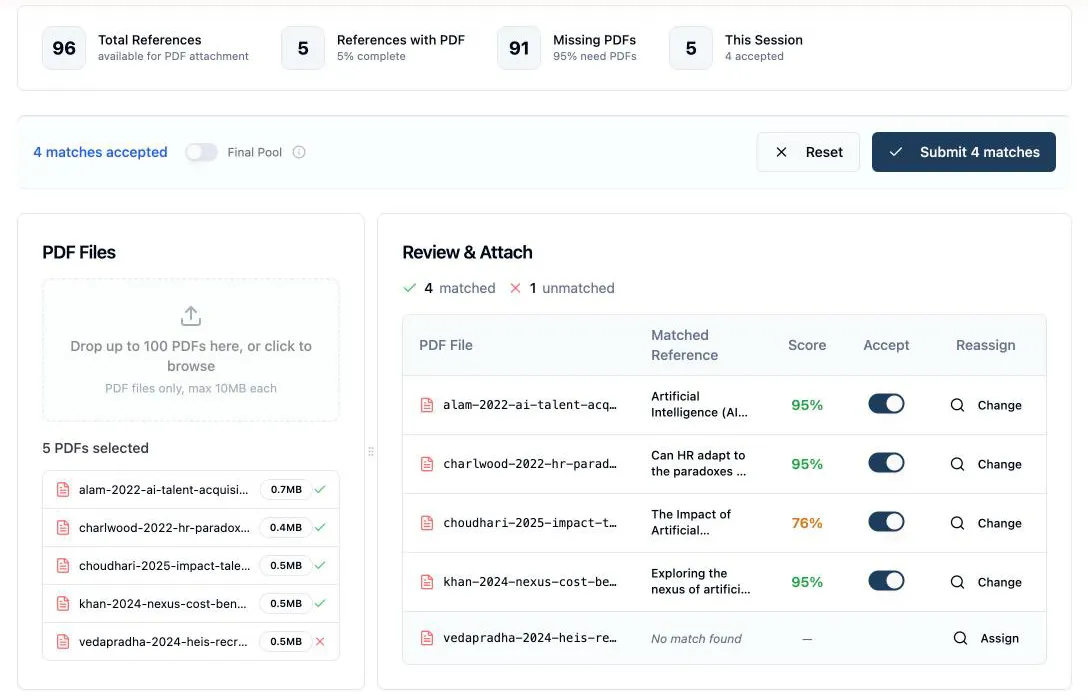
A reference that already has a PDF shows a Replacement badge on its row, and submitting asks you to confirm before any existing file is overwritten — attaching more PDFs never silently replaces one.
When to use which route
Section titled “When to use which route”Auto-match assumes you already have the PDFs on disk. If your full texts live in Zotero — or you want Zotero’s Find Available PDF to do the collecting — use the round-trip in How to import PDFs from Zotero instead: it exports your PDF-less references out, lets Zotero gather the files, and brings them back matched. Either way the result is the same: the PDF opens with the paper everywhere it appears — screening, annotation, and data extraction.