

How to use the extraction monitor
The Extraction monitor is the Owner’s and Assistants’ paper-by-paper view of extraction: where each paper stands, who it is waiting on, and — when something went wrong — the reset that sends it back through. Reviewers have their own progress page instead; the monitor refuses the URL for them.
Read the counters
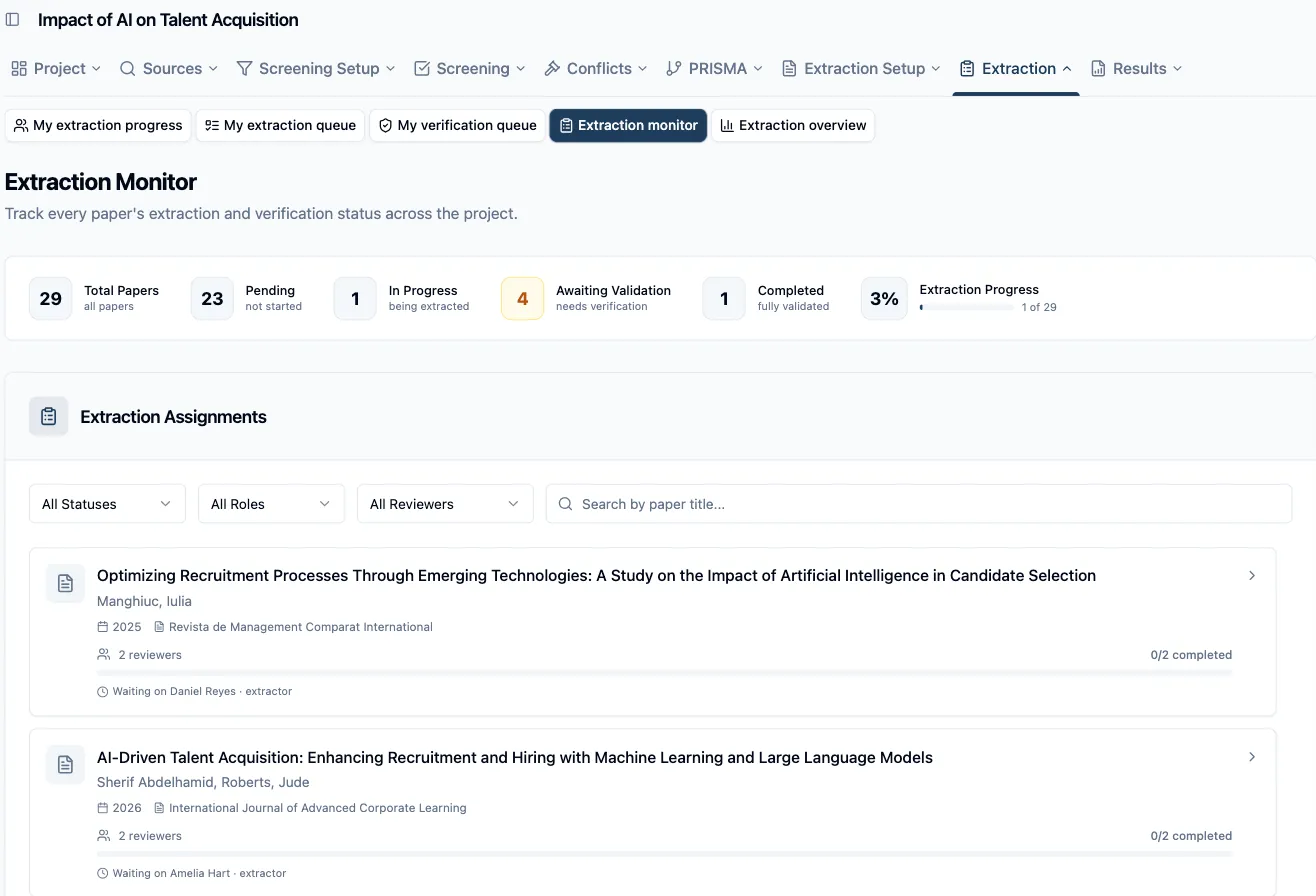
Section titled “Read the counters”Sidebar → Extraction → Extraction monitor. The row across the top counts papers, not assignments — and that is what makes it readable on a project where every paper has both an extractor and a verifier:
- Total Papers — every paper with an extraction assignment.
- Pending — nobody has started.
- In Progress — someone has started, but the paper hasn’t reached verification yet.
- Awaiting Validation — every extractor has submitted; a verifier still has to validate.
- Completed — everyone assigned to the paper has finished.
- Extraction Progress — completed papers as a share of all papers, with N of M beside the bar.
A paper counts as Completed only when everyone assigned to it is done. So a paper whose extractor submitted yesterday isn’t completed and isn’t in progress either — it sits in Awaiting Validation, its own bucket, and the one to watch when the question is “what’s stuck?”.
Find the papers stuck on someone
Section titled “Find the papers stuck on someone”The Extraction Assignments card lists the papers, ten to a page (switchable to 25 or 50). Four controls narrow it:
- Status — the same buckets as the counters.
- Role — Extractor or Verifier: which side of a paper the reviewer filter should match.
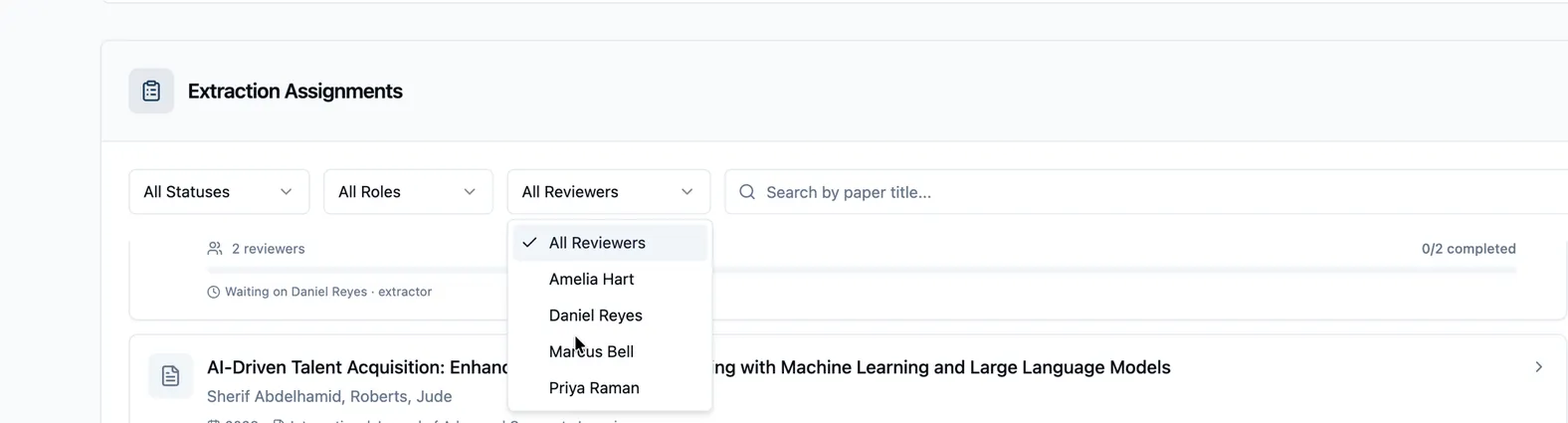
- Reviewer — one person; the list holds everyone with an extraction assignment.
- Search by paper title… — title only.
Each dropdown is a plain single-select — click it, pick one value, and the list narrows immediately. Reviewer is the one worth a look before you use it: it’s every person who holds any extraction assignment on the project, extractor or verifier alike, not just the people assigned to whatever you’re currently filtered to.
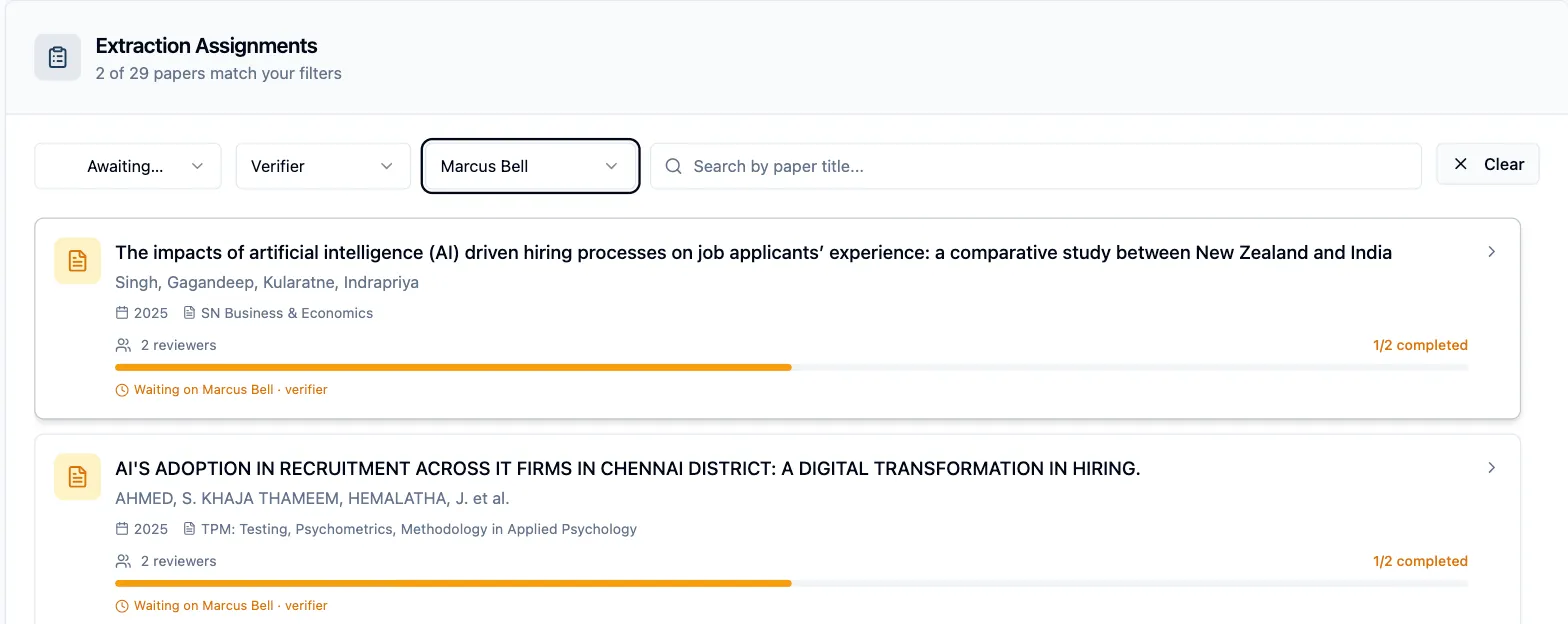
The card header counts the result (N of M papers match your filters) and Clear resets everything. The filters compose, and the composition is the point: Awaiting Validation plus a reviewer plus Verifier is “the papers stuck waiting on this person’s validation” — not the papers they extracted and are done with, which the same reviewer under Extractor would return.
Each card shows how many reviewers the paper has, how many have finished, and — whenever the paper isn’t complete — a Waiting on line naming the person whose turn it is, with their role. That line is the quickest answer to “who do I nudge?”.
On a project without verifiers the monitor drops what can’t happen: no Awaiting Validation counter or filter option, and no Role filter.
Open a paper’s details
Section titled “Open a paper’s details”Click a card and the Paper Details panel opens beside the list. Its header counts N/M reviewers completed, and Assigned Reviewers lists a card per person with an Extractor or Verifier badge and their status: Pending, In Progress, or Completed; Validated for an extractor whose work has been signed off; and for a verifier still waiting, Awaiting Extraction (the extractor hasn’t submitted) or Awaiting Validation (they have). View opens a read-only review of the whole record — the extractor’s answers, the verifier’s corrections, and the PDF evidence behind them.

Open the audit trail
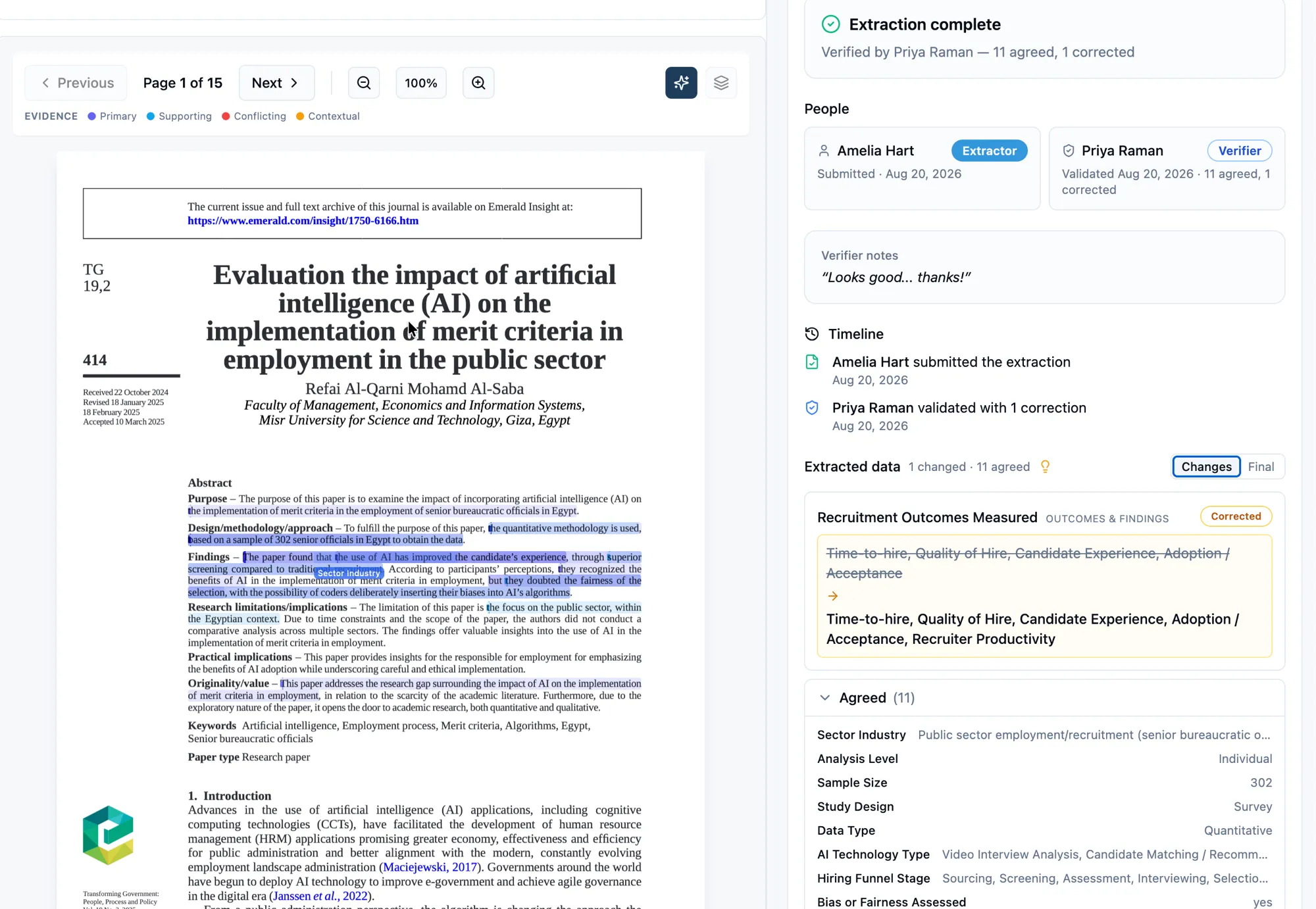
Section titled “Open the audit trail”Click View and the page opens as a split screen: the paper’s PDF on the left, with the same evidence tools as everywhere else — page controls, the evidence-layer toggle, and Open Full Screen for the full AI Evidence panel — and the audit trail on the right.
The trail opens with the outcome — Extraction complete, Verified by <name> — N agreed, M corrected — then People: the extractor’s card with when they submitted, the verifier’s with when they validated. A note the verifier left while validating surfaces next as its own callout, followed by a Timeline of both events with their dates.
Extracted data is where the verification actually shows, behind a [ Changes | Final ] toggle over the same record:
- Changes — the default whenever anything was corrected — shows only what moved. Each corrected field renders as an inline diff, the extractor’s original struck through beside the verifier’s replacement, badged Corrected; every field the verifier left untouched collapses into a single Agreed (N) group so the page doesn’t repeat what nobody touched.
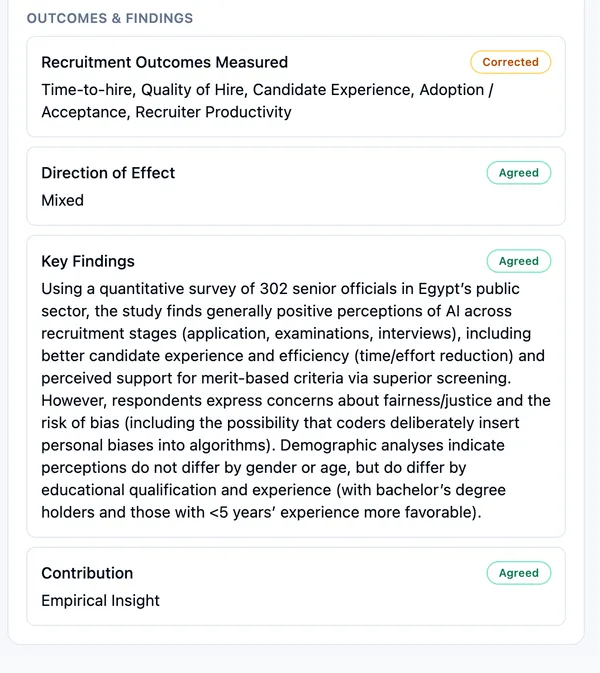
- Final drops the diff and lists every field’s current value, clean, grouped by section — fields that were corrected keep their Corrected badge, they just show the settled value instead of the before/after. It’s the fastest way to just read the record.
Switch to Final and the same section reads as settled values only — no strikethrough, no arrow, just what the record says now:
Reset an extraction
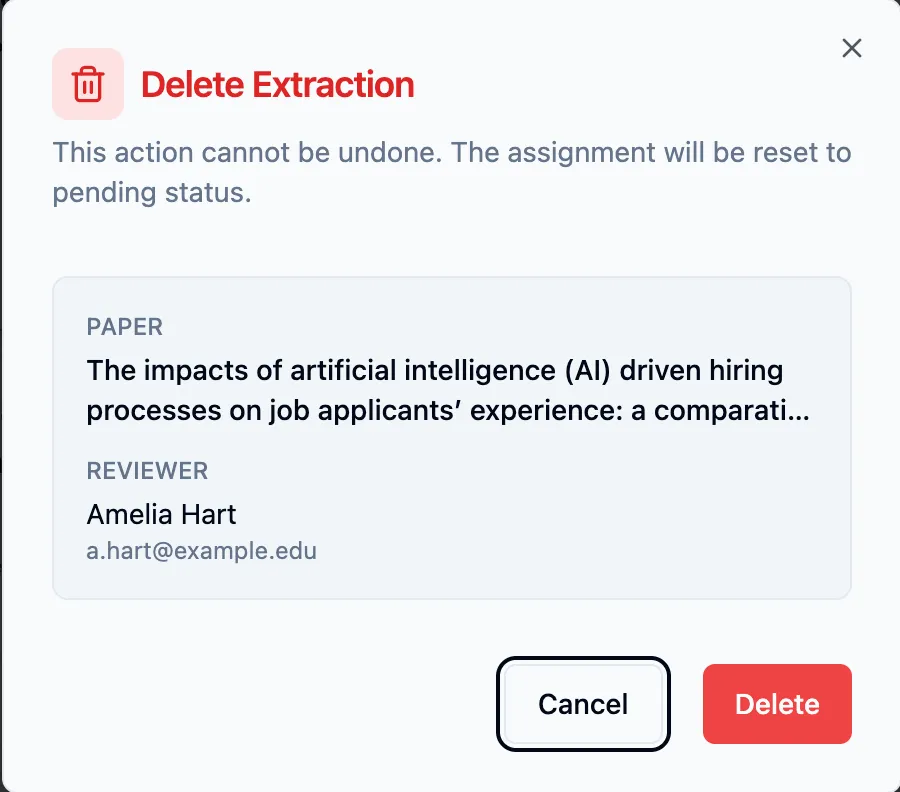
Section titled “Reset an extraction”A reviewer card that holds submitted work carries a trash-can button — Delete extraction data. It opens the Delete Extraction dialog naming the paper and the reviewer; confirm with Delete. The submitted answers and their evidence marks are removed and the assignment goes back to Pending, and the paper’s paired assignment resets with it — so the paper goes through extraction and verification again from scratch. It is the management-side counterpart of the extractor’s own Delete button, for the cases where the extractor isn’t around to press it.
For the project-wide numbers — how far along extraction is, how fast it’s moving, how much verification is changing — use the extraction overview.