

How to configure AI screening
AI screening in Littview is something a reviewer asks for, one paper at a time: a suggested Include or Exclude, with the criteria and reasoning behind it, generated from that paper’s title and abstract. Nothing sweeps your library on its own, and a suggestion never records a decision — the decision stays yours.
Two settings sit in front of all of it, and both are the Owner’s: when suggestions switch on for the project, and which members can use AI at all.
Choose an activation tier
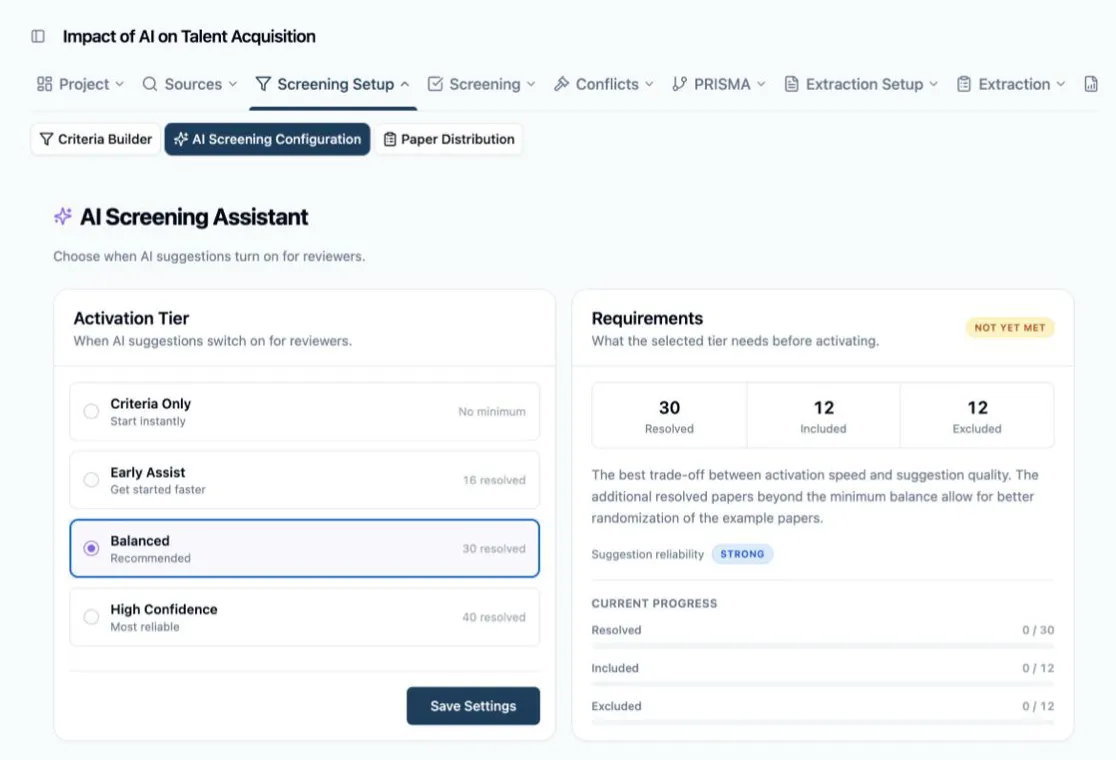
Section titled “Choose an activation tier”Open the project sidebar under Screening Setup and click AI Screening Configuration. The AI Screening Assistant page is two panels: Activation Tier on the left, Requirements on the right.
A tier is a threshold — how much finished screening this project must have before suggestions become available to reviewers. There are four, listed from the earliest to activate to the most reliable:
- Criteria Only — no minimum. Available from the first paper: the AI weighs the title and abstract against your criteria text alone, with no reference to anything the project has decided. Suggestions arrive marked with a Criteria only badge and the reliability is Exploratory — enough to see what the feature does, not enough to lean on.
- Early Assist — 16 resolved papers. The first tier where suggestions learn from your own finalized decisions.
- Balanced — 30 resolved papers. Marked Recommended: the best trade-off between activating early and suggesting well.
- High Confidence — 40 resolved papers. Activates last, drawing on the widest pool of decided papers.
Each tier past the first also sets a minimum on both sides — Balanced, for instance, wants its 30 resolved papers to include at least 12 included and 12 excluded — so suggestions are never shaped by one-sided examples. The Requirements panel shows those three numbers for the selected tier, its Suggestion reliability (from Exploratory up to Very Strong), and a Ready or Not yet met badge above your project’s Current progress bars.
A paper counts as resolved once its reviews have reached a final outcome — every assigned reviewer agreed, or the disagreement was settled in the conflict workspace. Papers still waiting on a second review, and papers sitting unresolved in Conflicts, count toward nothing here. That’s why this counter runs well behind the number of decisions your reviewers have recorded.
-
Click a tier. The Requirements panel updates as you click — numbers, description, reliability, progress — so you can compare all four before committing to one.
-
Click Save Settings. The button confirms with Saved, and the tier is live for every reviewer on the project.
New projects start on Criteria Only, and you can change tier whenever you like. A new threshold applies to the next suggestion a reviewer asks for; suggestions already generated stay as they were recorded.
What reviewers see before it activates
Section titled “What reviewers see before it activates”In the Screening Workspace, the AI Suggest button sits at the top right. Until the tier’s requirements are met it stays disabled, with an info icon next to it that opens an AI Activation Progress panel: the same three counts you set the tier by, labelled Finalized here rather than Resolved, one progress bar each, and the line “AI suggestions unlock once the project has enough finalized screening decisions (unanimous or conflict-resolved).” Reviewers can see exactly how far off activation is without asking you.
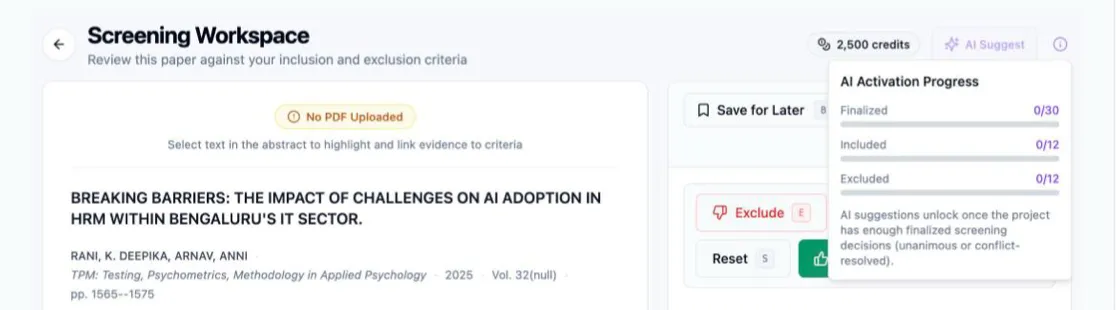
Two things hold once a tier does activate. Suggestions stay per paper and on request — a reviewer clicks AI Suggest, reads the reasoning, and keeps or overrides the criteria it selected. And a paper with no abstract in your library is left out: the suggestion is generated from title and abstract, so AI Suggest stays disabled there and the info icon says why. What reviewers do with a suggestion once it appears is covered in How to use AI screening suggestions.
Grant or withhold AI access per member
Section titled “Grant or withhold AI access per member”Access is also per person. Open Manage Members from the sidebar under Project: every member row carries a robot icon button — Enable AI access / Disable AI access — and anyone whose access is off is labelled AI off in their row. The switch is the Owner’s alone; assistants see the member list read-only.
Turning it off reaches past screening: AI data extraction, AI conflict recommendations, and the AI report drafts all respect the same switch. Nothing else about their access changes: they screen as usual, with AI Suggest disabled and a note that AI features have been disabled for their account by the project owner. Your own access as Owner is never affected.
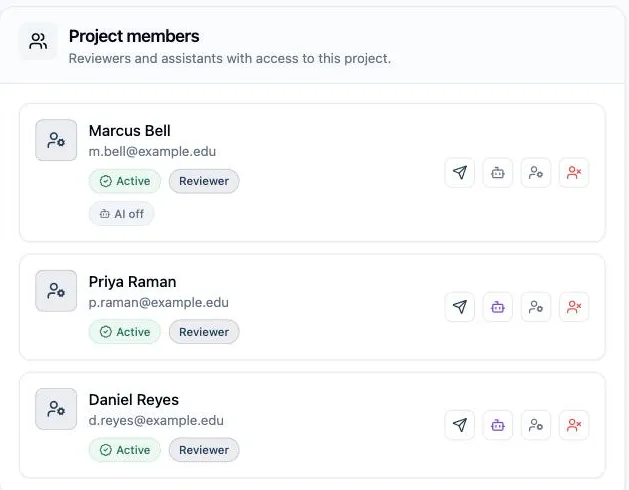
That switch is what lets you keep one reviewer’s judgement entirely independent of AI while the rest of the project uses it — the two opinions on a paper don’t have to be assisted the same way. It’s also the lever to pull when credit spend needs containing.
Next: How to screen papers in your queue covers the reviewer’s side of the workspace, suggestions included.