

How to import references from a file
Importing happens in two moves: upload your export files, then process them into references. Each uploaded file becomes a library in the project — a permanent record of which search produced which papers — and processing turns its entries into the references you’ll screen. Importing is for the project’s Owner and Assistants; reviewers see the libraries and references but can’t change them.
Upload your export files
Section titled “Upload your export files”-
In the project sidebar under Sources, open Libraries and references. The page opens on the Libraries tab.
-
Click Upload Library.
-
Drag your export files onto the upload area, or click it to browse. It accepts BibTeX (
.bib), RIS (.ris), PubMed MEDLINE (.txt), and EndNote XML (.xml) — up to 20 files at once, 10 MB each (Supported reference formats explains which databases produce which). -
Uploading starts immediately. Each file shows its status in the list, and when the batch finishes you land back on the Libraries tab with each file listed as its own library.
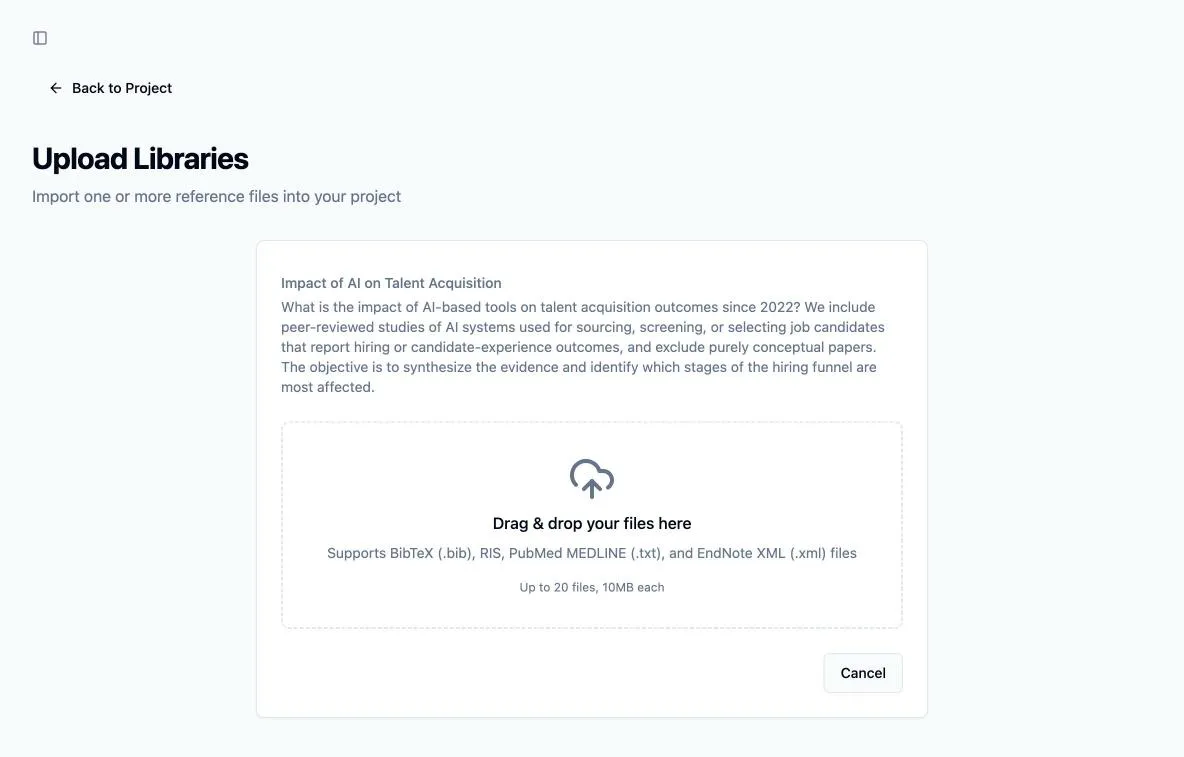
Upload one file per search if you can — one library per database keeps the origin of every record visible, which is exactly what you’ll need when reporting your search strategy.
Process the references
Section titled “Process the references”Uploading stores the file; nothing is imported yet. The Reference Processing card next to the library list does the actual import:
-
Click Process References. Littview parses every library that hasn’t been imported yet and writes its entries into the project — the progress bar tracks it across all pending libraries.
-
When it finishes, the summary tells you what happened: how many references were added, and how many libraries were already loaded and skipped.
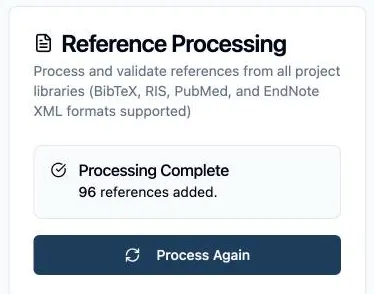
Each library is imported exactly once. Clicking Process Again after adding new uploads imports only the new libraries — the loaded ones are skipped, never duplicated. If an import is interrupted midway (a closed tab, a lost connection), just process again: the incomplete library is cleared and re-imported cleanly, so you can’t end up with half a file.
Check the result
Section titled “Check the result”Switch to the References tab to see the imported records — every entry with its title, authors, year, journal, abstract, and the library it came from. Two things are worth knowing at this point:
- Duplicates are kept, deliberately. If the same paper appears in exports from two databases, both records import. Removing them here would hide your true search yield — instead, Deduplication finds and resolves them as its own documented stage, which is what PRISMA expects.
- You can keep importing later. Ran a supplementary search after screening began? Upload and process it the same way — new references join the pool without disturbing any work already done.
If a file was refused, or the added count falls short of what your export contained, How to fix import errors explains each case and its remedy.