

How to fill an extraction form
Once extraction is distributed, your share of the papers waits in a queue, and each one opens as a split workspace: the paper on the left, the form on the right. This guide is the extractor’s path from queue to submitted paper.
Open your queue
Section titled “Open your queue”Sidebar → Extraction → My extraction queue. If anything is actionable, the card at the top says so — You have N papers waiting to extract — and Start Extraction takes you straight to the first one (it becomes Continue Extraction, with an N of M papers left count, once you’re under way).
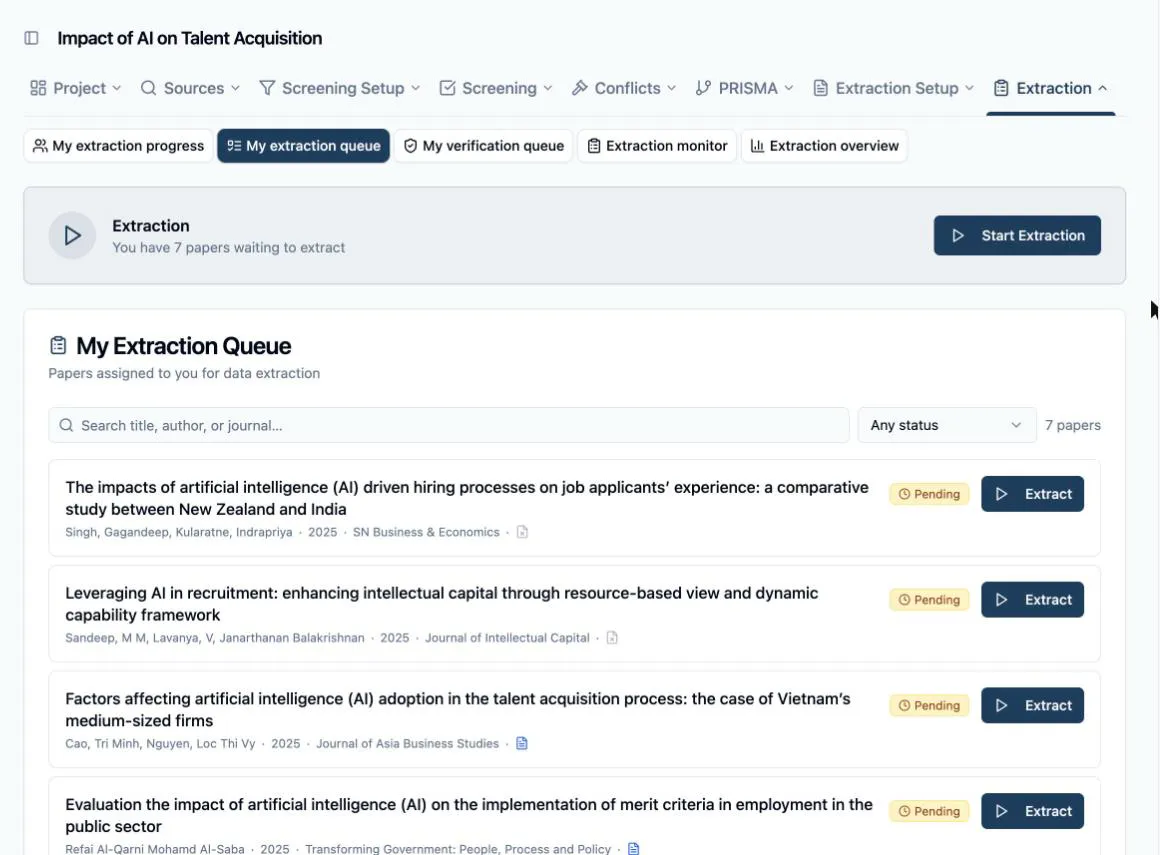
Each card carries the paper’s status — Pending, In Progress, or Completed — an indicator for whether a PDF is attached, and an Extract button (View, once it’s done). The search box covers title, author, journal, and year, and the status dropdown narrows the list; both stack.
The extraction workspace
Section titled “The extraction workspace”Clicking a paper opens the Extraction Workspace: the PDF fills the left panel, the form the right, with a divider you can drag to rebalance. The form’s section tabs across the top mirror your template’s sections — click one to jump, and the active tab follows as you scroll. Required fields are marked with *, and fields with guidance show a small ⓘ that pops the help text open.

If a paper has no PDF, the left panel shows No PDF Uploaded with the title, metadata, and abstract instead, plus the locator links to find the full text and an Upload PDF button to attach it yourself — the same gap-fill surface as in screening. You can extract from the abstract alone, but most templates will need the full text.
As you answer, use the two companions built into the form: the paperclip on each field links highlighted PDF passages to your answer, and the purple panel at the top can draft the whole form with AI for you to review.
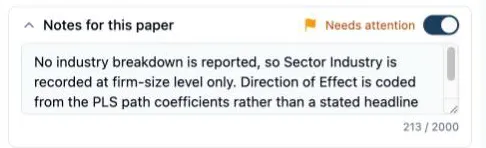
Notes for this paper
Section titled “Notes for this paper”Below the form sits Notes for this paper — a free-text note plus a Needs attention toggle. Use the note for anything that doesn’t fit a field, and the toggle for papers that deserve a closer look: a figure too low-res to read numbers from, a field you left empty on purpose, an ambiguity you weren’t sure how to code.
Write the note with the verifier in mind — it’s the first thing they see. Your note and flag open their view as a callout above the form, before they read a single answer, so a line like “sample size is from Table 2; the abstract rounds it” points them straight at what you want checked. Both stay on the record afterwards, which is what makes the note worth writing on a solo project too: it’s what explains a judgement call to you six months later.
Save, submit, move on
Section titled “Save, submit, move on”-
Save Draft stores partial work — there is no autosave, so save before moving on. The header chip tracks state (Unsaved, Saving…, Saved), and closing the tab with unsaved changes triggers a browser warning.
-
Submit when the paper is done. Every required field must be filled, or the submit is refused with the empty fields flagged.
-
The footer counts N of M left to extract — click Next (or press →) for the next unfinished paper. Next never saves for you, so a paper you skip past simply stays pending for later.
A submitted paper isn’t sealed: reopen it any time and the button reads Update Submission. That ends when a verifier validates it — a validated paper is a locked record, shown read-only.